# Installation
Download [BabelEdit 5.7.0](https://www.codeandweb.com/babeledit/download.md) for Windows, macOS or Linux and install it.
BabelEdit runs on the following OS versions:
* **Windows 10 and 11**
* **macOS 13** and newer (Intel and Apple Silicon)
* **Linux** (Debian, Ubuntu, Fedora, CentOS, Arch, Mint, etc.) as Flatpak
* **Ubuntu 22.04** and newer as .deb package
## Windows
Download the installer [BabelEdit-5.7.0.msi](https://www.codeandweb.com/babeledit/download/5.7.0/win) file and double-click it for installation.
## macOS
Download the [BabelEdit-5.7.0.dmg](https://www.codeandweb.com/babeledit/download/5.7.0/mac) file and open it from your Downloads folder. Drag and drop BabelEdit.app into your Applications folder.
## Linux
### Debian/Ubuntu
This installation works for distros using the _apt_ package manager. Start by downloading [BabelEdit-5.7.0.deb](https://www.codeandweb.com/babeledit/download/5.7.0/linux-deb).
Open the downloads folder and click the _BabelEdit-5.7.0.deb_ to install it using the software installer.
You can also use the command line:
```
sudo apt install ./BabelEdit-5.7.0.deb
```
### All distros using Flatpak
We support other distros using the [Flatpak](https://flatpak.org/) package manager.
Download [BabelEdit-5.7.0.flatpak](https://www.codeandweb.com/babeledit/download/5.7.0/linux-flatpak) and run the following command in a terminal:
```
flatpak install BabelEdit-5.7.0.flatpak
```
If it didn't work...
You might see the following error during installation:
```
The application com.codeandweb.babeledit/x86_64/master requires the
runtime org.freedesktop.Platform/x86_64/20.08 which was not found
```
If this is the case, the Flathub repository was not added to your system. It contains the base runtime that BabelEdit needs to run.
Open a command line and run:
```
flatpak remote-add --if-not-exists flathub https://flathub.org/repo/flathub.flatpakrepo
```
Now try again to install BabelEdit.
To run BabelEdit, you can double-click its icon or use the command line:
```
flatpak run com.codeandweb.babeledit
```
# Framework selection
BabelEdit supports a wide range of frameworks and file formats. It automatically recognizes framework-specific features and adjusts the UI to match your project type.
BabelEdit also supports generic formats (JSON and YAML) that work across many frameworks.
## Framework selection screen
You should see the following screen after agreeing to the license terms:
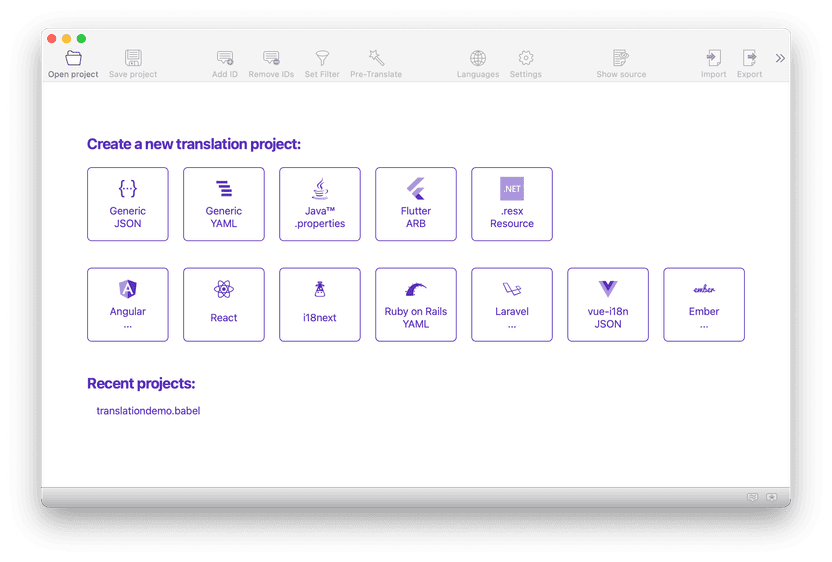
In this screen you can:
* Select a [framework](#frameworks-and-file-formats) to start with. Choose **Generic JSON** if you don't use one of the provided frameworks.
* **Drop your translation files** to start working. BabelEdit will try to detect the framework automatically.
* Open an **example project** if you just want to see BabelEdit in action.
## Frameworks and File Formats
BabelEdit supports a wide range of frameworks and file formats. Use this overview to pick the integration guide that matches your project.
| Integration Guide | File Format(s) |
| --- | --- |
| [.NET](https://www.codeandweb.com/babeledit/documentation/frameworks/dotnet.md) | `.resx` |
| [Angular](https://www.codeandweb.com/babeledit/documentation/frameworks/angular.md) | |
| [@angular/localize](https://www.codeandweb.com/babeledit/documentation/frameworks/angular.md#angular-localize) | `.xlf` |
| [ngx-translate](https://www.codeandweb.com/babeledit/documentation/frameworks/angular.md#ngx-translate) | `.json` |
| [Transloco](https://www.codeandweb.com/babeledit/documentation/frameworks/angular.md#transloco) | `.json` |
| [Ember.js](https://www.codeandweb.com/babeledit/documentation/frameworks/ember-js.md) | `.json` |
| [Flutter](https://www.codeandweb.com/babeledit/documentation/frameworks/flutter.md) | `.arb` |
| [GetText ("PO files")](https://www.codeandweb.com/babeledit/documentation/frameworks/po-files.md) | `.po` |
| [i18next](https://www.codeandweb.com/babeledit/documentation/frameworks/i18next.md) | `.json` |
| [Java](https://www.codeandweb.com/babeledit/documentation/frameworks/java.md) | `.properties` |
| [JSON (Generic)](https://www.codeandweb.com/babeledit/documentation/frameworks/json.md) | `.json` |
| [Laravel](https://www.codeandweb.com/babeledit/documentation/frameworks/laravel.md) | `.php`, `.json` |
| [React](https://www.codeandweb.com/babeledit/documentation/frameworks/react.md) | |
| [react-intl](https://www.codeandweb.com/babeledit/documentation/frameworks/react.md#react-intl) | `.json` |
| [react-i18next](https://www.codeandweb.com/babeledit/documentation/frameworks/react.md#react-i18next) | `.json` |
| [@lingui/react](https://www.codeandweb.com/babeledit/documentation/frameworks/react.md#react-lingui) | `.json` |
| [Ruby on Rails](https://www.codeandweb.com/babeledit/documentation/frameworks/ruby-on-rails.md) | `.yml` |
| [Svelte](https://www.codeandweb.com/babeledit/documentation/frameworks/svelte.md) | `.json` |
| [Vue.js](https://www.codeandweb.com/babeledit/documentation/frameworks/vue-js.md) | `.json` |
| [YAML (Generic)](https://www.codeandweb.com/babeledit/documentation/frameworks/yaml.md) | `.yaml`, `.yml` |
If your framework is not listed, start with the generic JSON format: [/babeledit/documentation/frameworks/json](https://www.codeandweb.com/babeledit/documentation/frameworks/json.md).
# The main screen
To follow this short tour click on **Open Example Project**. The example project will open with a screen similar to the one below.
If you don't want to use the example project and start with your framework directly you have to [configure your languages](https://www.codeandweb.com/babeledit/documentation/configure-languages.md) first.
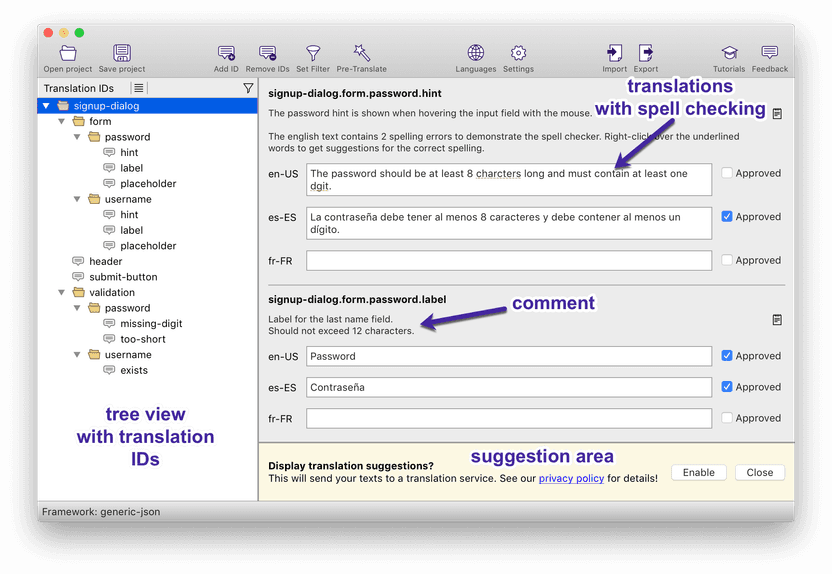
The screen has 2 main areas
* translation tree view or translation list on the left side
* edit area on the right side
## Translation view (left side)
The translation view shows all your translation IDs as a tree view or list. You can toggle the display using the icon right of _Translation IDs_.
The IDs are displayed in a tree if possible — which means that they are either already structured in a tree in your translation files or look similar to identifiers separated by dots (`.`). E.g. `form.password.label`.
A flat list is displayed if you use plain text for your IDs. e.g. "Hello world!": "Hallo Welt!".
Selecting an ID or folder in the view displays the translations on the right side for editing.
Use the `right mouse` or `CTRL` + `left mouse` (MacOS) on a translation ID to display the context menu with function like rename, move, copy and more.
### (No) drag & drop in the tree
Sometimes users ask us why we don't add drag & drop functionality to BabelEdit's tree view.
We omitted this on purpose. The reason is that you can easily do the same with **Copy & paste** or the **Move to** and **Copy to** from the context menu on a selection. Using these is a deliberate action.
We assume that users more often want to select than move items. Drag & drop could easily trigger renames by accident which you might notice way later.
## Translation editor (center view)
### Editing translations
Each translation is displayed in 3 blocks:
* The heading with the translation ID
* The comment area (editable by using the notepad-icon on the right)
* The translations
BabelEdit displays all languages at once to give you an overview over the different translations. This makes it easier to be consistent across all your translations.
Translations are automatically spell-checked. Use `right mouse` or `CTRL` + `left mouse` (MacOS) over an underlined word to correct or ignore it.
The approved flag on the right is a help for you to know which translations are considered final or not.
### Tool area at the bottom
You can enable 2 tools at the bottom of the center area:
* [Translation memory](https://www.codeandweb.com/babeledit/documentation/translation-memory.md)
* [Machine translation suggestions](https://www.codeandweb.com/babeledit/documentation/machine-translation.md#suggestions)
## Source code view (right side)
The source code view shows you where the current translation is used in your project. The source code files must be accessible from BabelEdit.
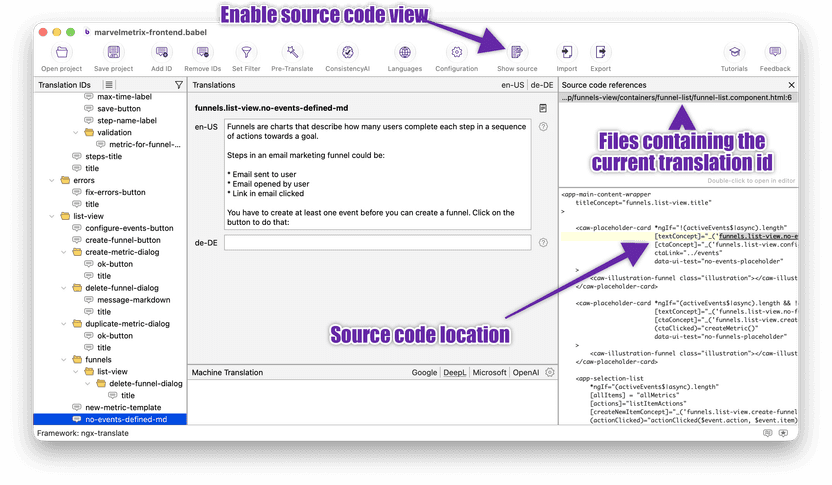
BabelEdit tries to detect your source root when you create the project. If this fails, you can manually set the root folder in [Project Configuration](https://www.codeandweb.com/babeledit/documentation/project-configuration.md)
## Similar Phrases
BabelEdit helps you speed up your work by showing similar phrases. This feature scans your existing translations and suggests phrases where the same or similar words have already been used — so you can stay consistent without retyping or re-thinking translations.
To activate Similar Phrases, simply click on the icon in the bottom right corner of BabelEdit:
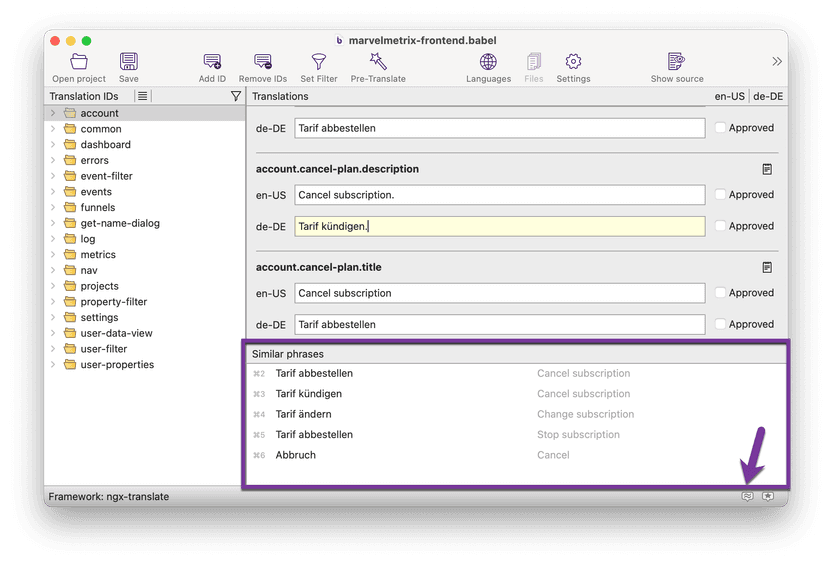
A pane will open at the bottom of the center view, displaying other phrases from your project that match or resemble the one you are currently working on.
## Suggestions
BabelEdit can display [translation suggestions](https://www.codeandweb.com/babeledit/documentation/machine-translation.md#suggestions) for the current text using DeepL, Google or Microsoft Translate. Enable this feature by clicking on the button in the bottom right corner of BabelEdit.
Please be aware that your translations are sent to external services for translation, consult the section [Privacy & what happens to your data](https://www.codeandweb.com/babeledit/documentation/machine-translation.md#privacy-data) in our documentation for details. Please be also aware that we can't offer this feature without limits due to the costs we have to pay for the translations service ourselves, see [The cost for machine translation](https://www.codeandweb.com/babeledit/documentation/machine-translation.md#translation-credits)
### Primary language
The primary language defines which language is used as the source for machine translation suggestions and for features that compare translations. You can set this in the Configure Languages dialog.
### Configure languages dialog
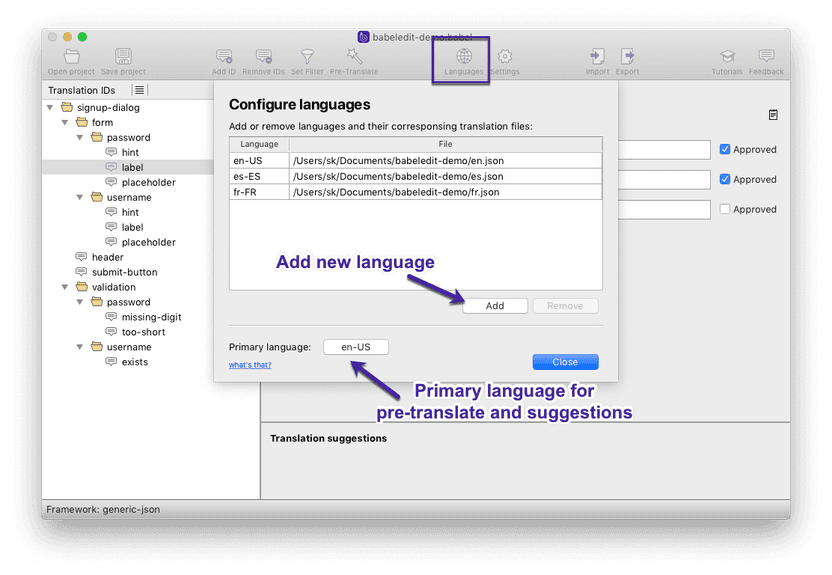
Open the Configure Languages dialog from the main menu to add, remove, or reorder languages and set the primary language for your project.
BabelEdit uses the [primary language](#primary-language) that you can set in the [configure languages dialog](#configure-languages) as source language for the translations.
Use the shortcut `CTRL+number` (Windows) or `CMD+number` (Mac) to replace the current translation text with the suggestion. You can also click on the translation text.
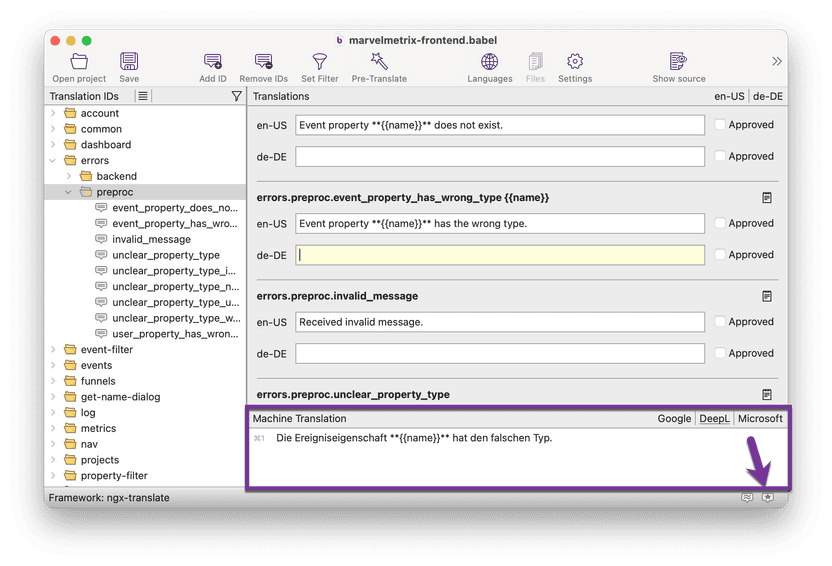
If you want to translate many texts at once use the pre-translate feature.
# Project configuration
## The .babel project file
Consider the .babel file as project configuration file. You are asked to store it the first time you save your project.
BabelEdit has to store additional data that can't be saved in .json files (such as the comments, and the state of the approved flags needs). The file also contains references to your language files and other configuration data.
You can check it in your version management system — the file contains relative paths from itself to the translations and should work on all computers as long as all files are on the same file system.
BabelEdit does **not** store the translations in the .babel file. It always writes the data back to the translation files.
## Project configuration dialog
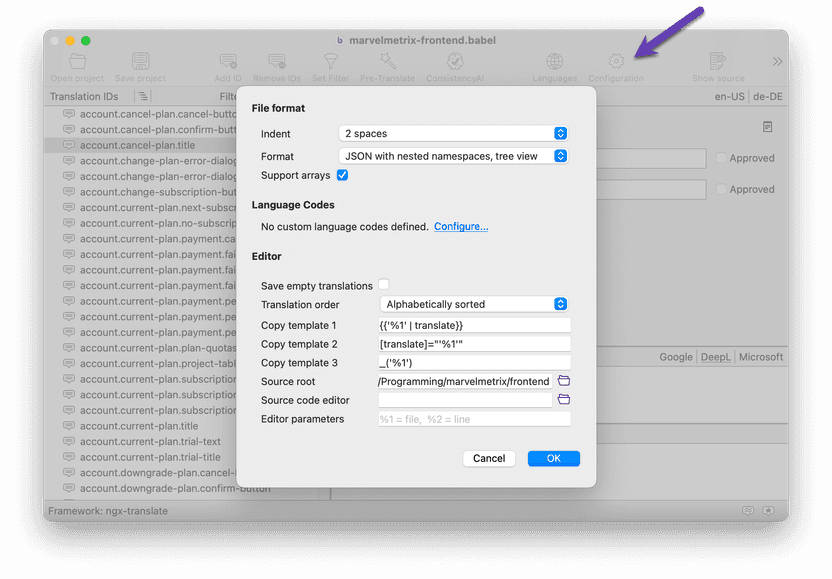
### File Format
The settings might vary depending on your selected framework.
These settings describe the file format used for the translation files. You can set the indentation and also the layout.
E.g. for JSON based translation files, it's possible to represent the translations as a flat structure or tree.
* **Indent** - indentation for JSON files
* **Format** - JSON files can be written as nested (tree) or flat
* **Support arrays** - detects the use of array in JSON files. E.g. `items.0`, `item.1`, `items.2`,... can be represented as array instead of explicit IDs
### Language Codes
You can add custom language codes in this section. This is useful for languages BabelEdit does not yet support or if you want to create variations - e.g. for specific customers.
### Editor
* **Save empty translation** - use this if you want to save translations that contain no text. If unset, BabelEdit omits these IDs when saving
* **Translation order** - preserve order like in the source file or sort translations by ID
* **Copy Template 1..3** - Set the template when copying an ID to clipboard (by clicking right mouse button in the tree). Use `%1` as a placeholder for the ID.
* **Source root** - The root folder of your source code files. Used by the source code viewer, add IDs from source and filters.
* **Source code editor** - You can double-click on source files in the source code viewer to open a reference in your IDE. BabelEdit detects many IDEs in case yours does not open, set the executable here.
* **Editor parameters** - The parameters for the source code editor. `%1` for the file name, `%2` for the line number
## Line endings
BabelEdit stores files with local file endings. That means LineFeed (LF) on macOS and Linux, CarriageReturn-LineFeed (CRLF) on Windows. There is currently no way to change this in the settings.
If you are using in a mixed environment with Windows and macOS or Linux clients, you should configure your license management system to convert between the different ending styles. See our tutorial [How to handle line endings in git](https://www.codeandweb.com/tutorials/how-to-handle-line-endings-in-git.md) for more details about how you can do that.
# Configure languages
BabelEdit can work with different frameworks and adapts to their file layout.
## Frameworks with a single file per translation
Some frameworks (like [ngx-translate](https://www.codeandweb.com/babeledit/documentation/frameworks/angular.md#ngx-translate)) have one JSON file per language. Add new languages by:
* dragging & dropping translation files (JSON, PHP)
* selecting a directory to search for files
* creating a new file in BabelEdit
## Frameworks with multiple files per language
Some frameworks (e.g. [Laravel](https://www.codeandweb.com/babeledit/documentation/frameworks/laravel.md)) use multiple files per language. Add new languages by:
* drag & drop of a language folder
* selecting an existing language folder
* creating a new folder for the files in BabelEdit
BabelEdit automatically collects all language files found in these folders.
## Primary language
Choose one language as your primary language — this is usually the language you use for development. The primary language is used as source for machine translation features such as suggestion and pre-translate.
You can configure the primary language at the bottom of the configure languages dialog.
## Custom languages
BabelEdit also supports custom languages. You can use them to either support languages which are not included in our language list or to create special variations. E.g. for specific customers of your application, or to create a polite or formal version of your UI.
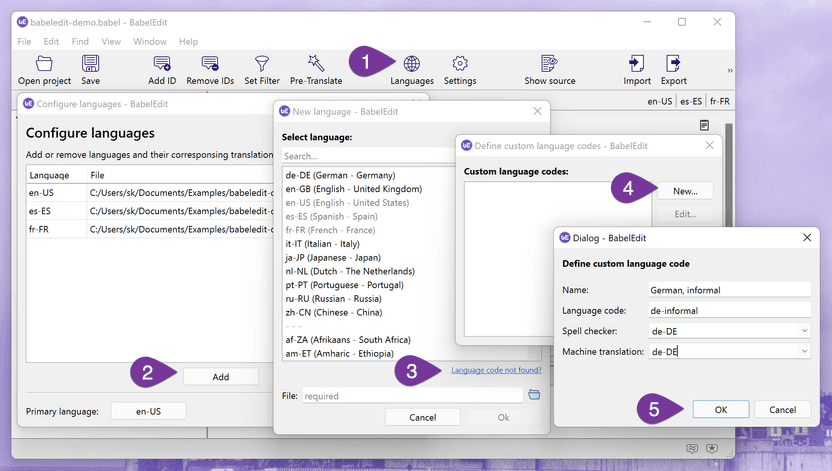
1. Open the **Languages** dialog from in the toolbar.
2. To add a new language file, use the **Add** button, and select **New** from the drop-down.
3. The **Language code not found?** link at the bottom of the language list opens the custom language configuration.
4. Click **New** to create your language.
5. Now enter the name and the code you want to use. If you are building a variant of an existing language, select the spell checker and the machine translation language you want to use.
6. Click **Close** and select your new language code from the list.
# Adding translations
> **Note:** Some formats and frameworks (e.g., gettext/PO or XLIFF) don’t allow adding translation IDs manually. They rely on extractors that regenerate files and would overwrite IDs you add by hand on the next run.
There are three ways to add new translation IDs to your project:
## Adding an ID manually
Click **Add ID** or use one of these keyboard shortcuts:
* Windows: `CTRL`+`N`
* macOS: `⌘`+`N`
This opens a dialog where you can enter the new ID. If you’ve selected a branch in the Translation ID tree on the left, the branch path is pre-filled so you only need to enter the final segment.
You can also use this dialog to jump to an existing ID. Enter the ID and BabelEdit opens it in the center view.
Use the **Extract from source code…** button to add IDs found in your code (requires a configured [Source Code View](https://www.codeandweb.com/babeledit/documentation/main-screen.md#source-code-view) and isn’t available for all project types).
## Extracting IDs from the source code
Requires a configured [Source Code View](https://www.codeandweb.com/babeledit/documentation/main-screen.md#source-code-view) and isn’t available for all project types. You can open it from the **Add IDs** dialog, the menu, or via shortcut:
* Windows: `CTRL`+`ALT`+`N`
* macOS: `⌘`+`⌥`+`N`
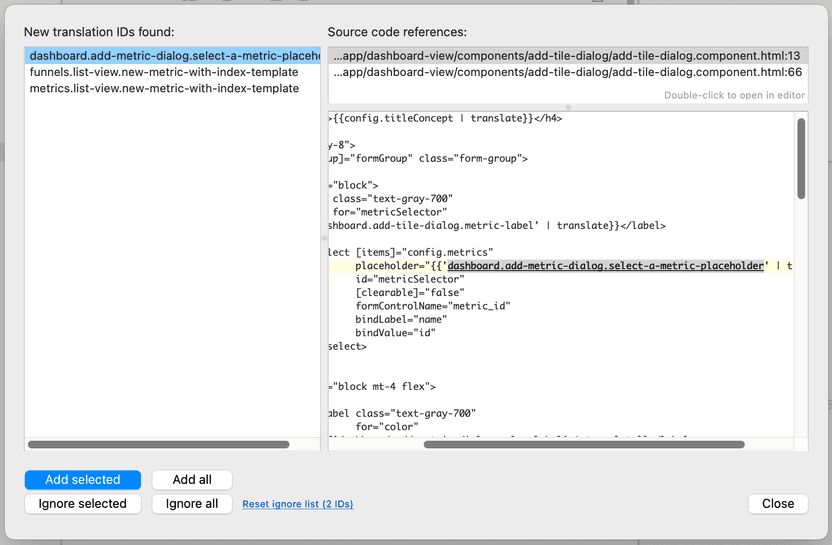
On the left side, you see all IDs that are not yet part of your translation files. Selecting an ID shows its use in your source code on the right side.
Some IDs may show a warning sign, meaning they can’t be added to the project. This is usually due to conflicting names (e.g., `main.title` can’t be added to a project that already contains the ID `main`).
Add the selected IDs to your project with the **Add selected** button. You can also select all IDs at once.
You can ignore specific IDs so they won’t show up next time. Use the small **Reset ignore list** action to unhide them later.
The extractor uses regular expressions on your source code and has limitations (for example, it doesn’t detect IDs inside comments).
The extraction is supported by the following frameworks:
| Framework | Comment |
| --- | --- |
| Angular (Transloco) | does not support namespaces using `read` |
| Angular (ngx-translate) | yes |
| Ember (json + yaml) | yes |
| React (i18next) | does not support namespaces |
| Laravel (json + php) | yes |
| React (react-intl/formatjs) | yes |
| Svelte (svelte-i18n) | yes |
| Vue (vue-i18n) | yes |
## Using an extractor provided by the framework
Some frameworks provide command-line extractors that scan your source code for new IDs and update your localization files.
BabelEdit detects these changes and reloads the files. Make sure to save your changes in BabelEdit before running the extraction tool.
# Search & filters
BabelEdit allows you to filter and search translations and IDs.
* [Search](#search) helps you find translations in the center view.
* [Filters](#filters) help you find translations in the list view - or display only translations matching your criteria.
## Searching
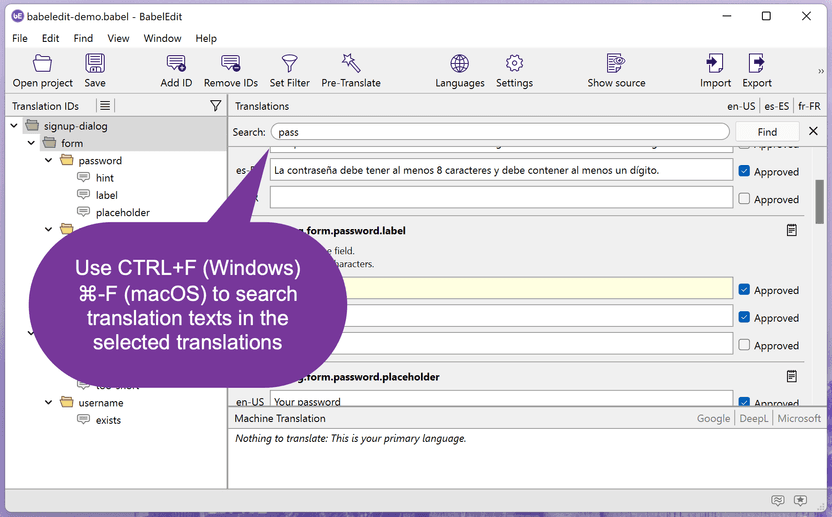
You can search for text in all translations selected for the center view.
| Function | Windows | macOS |
| --- | --- | --- |
| Find | `CTRL`+`F` | `⌘`+`F` |
| Find next | `F3` | `⌘`+`G` |
| Reset filter | `ESC` | `ESC` |
## Filters
## Quick filter on translation IDs
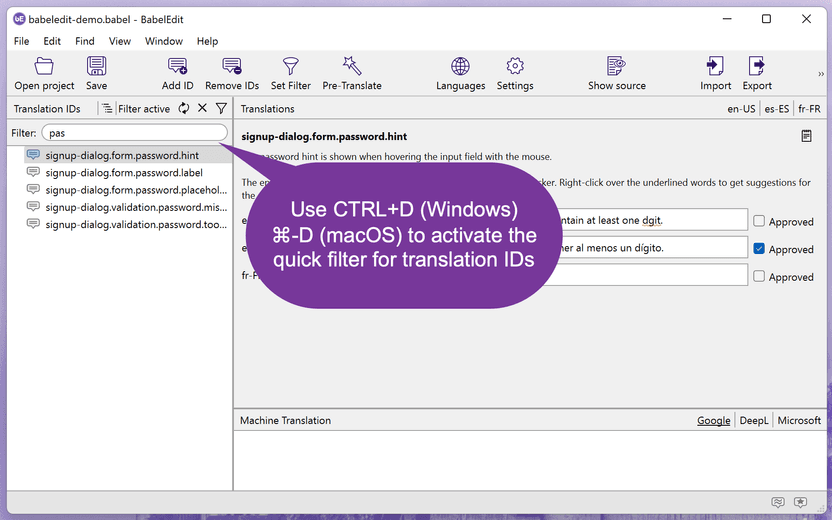
Need to jump to a translation ID quickly? Start filtering:
* Windows: `CTRL`+`D`
* macOS: `⌘`+`D`
Reset the filter with `ESC`
## Custom filter criteria
BabelEdit can filter your translations using different criteria.
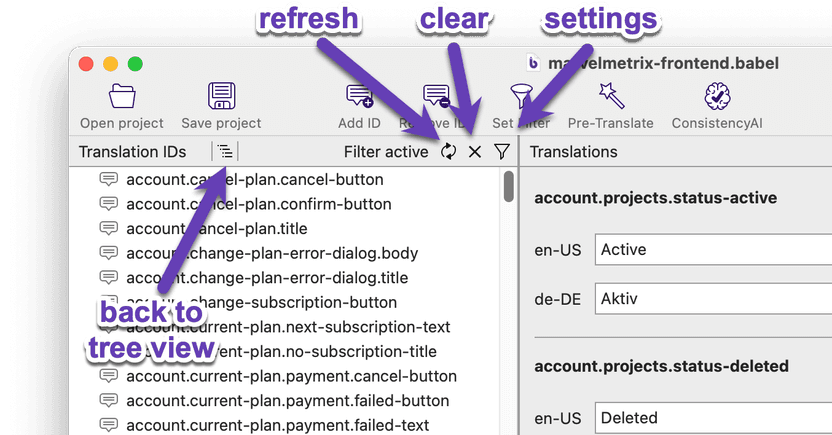
You can filter by
* translation ID
* translation text
* translated / untranslated
* approved flag
* used / not used in source code (requires configured [Source Code View](https://www.codeandweb.com/babeledit/documentation/main-screen.md#source-code-view))
BabelEdit displays all translations matching your criteria. The display switches to list view while the filter is active.
The shortcut for the filter is `CTRL`+`⇧`+`D` (Windows) or `⇧`+`⌘`+`D` (macOS).
# Editing tools
Editing tools are available in the menu and can be used from the keyboard. Use them to make changes to the text.
## Convert case
**Menu**: Edit -> Convert case
You can either make the complete text upper-case, lower-case or make all lowercase except for the first letter in.
These functions are available from the menu or by using the following shortcuts:
| Function | Windows | macOS |
| --- | --- | --- |
| Uppercase first letter | `CTRL`+`⇧`+`U` | `⇧`+`⌘`+`U` |
| Uppercase | `CTRL`+`ALT`+`⇧`+`U` | `⌥`+`⇧`+`⌘`+`U` |
| Lowercase | `CTRL`+`⇧`+`L` | `⇧`+`⌘`+`L` |
## Remove whitespace
**Menu**: Edit -> Remove whitespace
Use these functions to remove whitespace from the text:
* Trim - removes all whitespace at the beginning and end of the text
* Trim line by line - removes all whitespace at the beginning and end of each line
* Simplify - removes all whitespace between words
| Function | Windows | macOS |
| --- | --- | --- |
| Trim | `CTRL`+`⇧`+`U` | `⇧`+`⌘`+`T` |
| Trim line by line | `CTRL`+`ALT`+`⇧`+`U` | `⌥`+`⇧`+`⌘`+`T` |
| Simplify | `CTRL`+`⇧`+`L` | `⇧`+`⌘`+`Y` |
## Remove unused IDs
**Menu**: Edit -> Remove unused IDs
Use this command to clean up obsolete or placeholder entries in your translation files. It scans all Translation IDs and removes those where both the source text and all translations are empty.
## Fill Empty Translations
**Menu**: Tools -> Fill empty translations
This tool lets you quickly populate empty translations by copying messages from one language to another. You can select which language to use as the source and which language should receive the copied messages. The tool will only copy messages into target language entries that are currently empty, preserving any existing translations.
### Change Approved Flags
**Menu**: Tools -> Change Approved Flags
This dialog allows you to set or clear the approved flag for translations across one or more languages.
* **Set flag / Clear flag** Choose whether you want to mark translations as approved or remove the approval.
* **Languages** Select which languages the change should apply to. You can toggle individual languages or use **all / none** for quick selection.
* **Change selected items only** When enabled, the action only applies to the currently selected translation entries (all entries in the center view). If disabled, it applies to all entries in the project.
This tool is useful for managing the review state of your translations in bulk, ensuring you can quickly mark translations as approved or reset their status when needed.
# Import and export
Use the export function to export your translations for translators or to use with other applications.
BabelEdit can currently export as CSV files which can be opened with
* Microsoft Excel
* Apple Numbers
* LibreOffice
* Google Docs
* ... and more
## Exporting translations
Select the languages to export from the dialog:
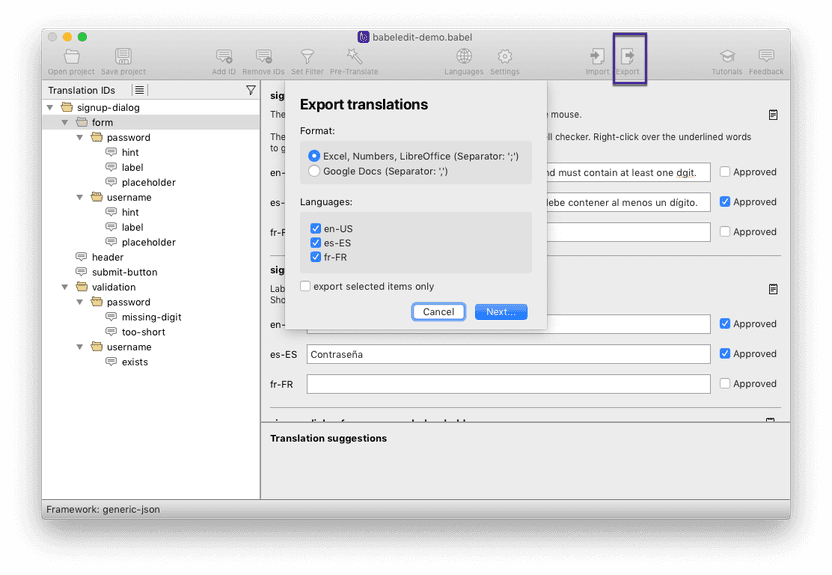
BabelEdit writes a CSV file with the following columns:
* translation ID
* translations in all selected languages
* comments
Please make sure to keep the ID column, and the headings for the translations — you won't be able to import the translations back otherwise.
## Importing translations
Click on "Import" and select the .csv file for the import.
BabelEdit requires the first column to contain the translation IDs, the following columns have to contain the translations.
# .NET
BabelEdit supports .NET projects with .RESX-files.
Example file:
```
text/microsoft-resx
2.0
Hello World
Nested Hello World
```
# Angular
## @angular/localize (XLIFF-Files)
BabelEdit supports Angular's native translation method using @angular/localize.
A complete tutorial is available from here:
* [How to translate your Angular app with xlf files](https://www.codeandweb.com/babeledit/tutorials/how-to-translate-your-angular-app-with-xlf-files.md)
### XLIFF 1.2 / 2.0
BabelEdit is not a generic XLIFF editor. It supports only portions of the file format which is also used by the frameworks.
For [@angular/localize](https://www.codeandweb.com/babeledit/tutorials/how-to-translate-your-angular-app-with-xlf-files.md), we support XLIFF 1.2 - which is the default for Angular's extraction tool. The subset BabelEdit supports works with all steps in the translation workflow: Extraction, editing, importing.
## ngx-translate (JSON files)
Complete tutorials including a small demo project are available here:
* [How to translate your Angular app with ngx-translate](https://www.codeandweb.com/babeledit/tutorials/how-to-translate-your-angular-app-with-ngx-translate.md)
The preferred layout for the ngx-translate project is to keep the translation files in your _assets/i18n_ folder and name the json files with the translations according to the language code:
* assets‚
* i18n
* de.json
* en.json
* fr.json
You are of course free to give your files other names or store them elsewhere. Just make sure to configure ngx-translate according to your file layout.
ngx-translate supports all 3 JSON formats supported by BabelEdit:
* [JSON with nested namespaces (Namespaced JSON)](https://www.codeandweb.com/babeledit/documentation/frameworks/json.md#namespaced-json)
* [JSON with namespaces in key (Flat JSON)](https://www.codeandweb.com/babeledit/documentation/frameworks/json.md#flat-json)
* [JSON with plaintext keys](https://www.codeandweb.com/babeledit/documentation/frameworks/json.md#plaintext-json)
If you use ngx-translate-extract (recommended!) to extract your translations and update your translation files make sure that the format you chose matches the file format set in BabelEdit's settings.
## Transloco (JSON files)
Please read this tutorial for details:
* [How to translate your Angular app with Transloco](https://www.codeandweb.com/babeledit/tutorials/how-to-translate-your-angular-app-with-transloco.md)
# Ember.js
BabelEdit supports Ember.js with the following packages:
* [ember-intl](#ember-intl)
* [ember-i18next](#ember-i18next)
## ember-intl
Ember with Ember-Intl is supported with [YAML](https://www.codeandweb.com/babeledit/documentation/frameworks/yaml.md) or [JSON](https://www.codeandweb.com/babeledit/documentation/frameworks/json.md) files. You have to choose which one you want to use — you can't use both formats at the same time.
Please visit our [ember-intl tutorial](https://www.codeandweb.com/babeledit/tutorials/how-to-translate-your-ember-app-with-ember-intl.md) for a quick tutorial on how to translate your application.
BabelEdit can currently work with one file per language — e.g.
* translations
* en-us.json
* de-de.json
* fr-fr.json
or
* translations
* en-us.yaml
* de-de.yaml
* fr-fr.yaml
## ember-i18next
Please use a [i18next](https://www.codeandweb.com/babeledit/documentation/frameworks/i18next.md) project to use Ember with i18next.
# Flutter
BabelEdit supports Application Resource Bundle Files (.arb) used to translate Flutter applications.
The way Flutter works with the translation files has changed over time.
Older versions of the framework used an extraction tool to create .arb files from source code. BabelEdit up to 2.9.2 supported this behaviour.
This behaviour was inverted with newer versions of Flutter: You now write the .arb file and create the code instead. Which is way simpler than doing it in the other direction.
* New language files can be created inside BabelEdit
* Descriptions are now editable via the comments' field in BabelEdit. They are stored in the .arb file of the primary language. Comments in other language files are ignored and will be removed on save!
* Existing comments from 2.x.x projects are merged with the descriptions from the .arb file.
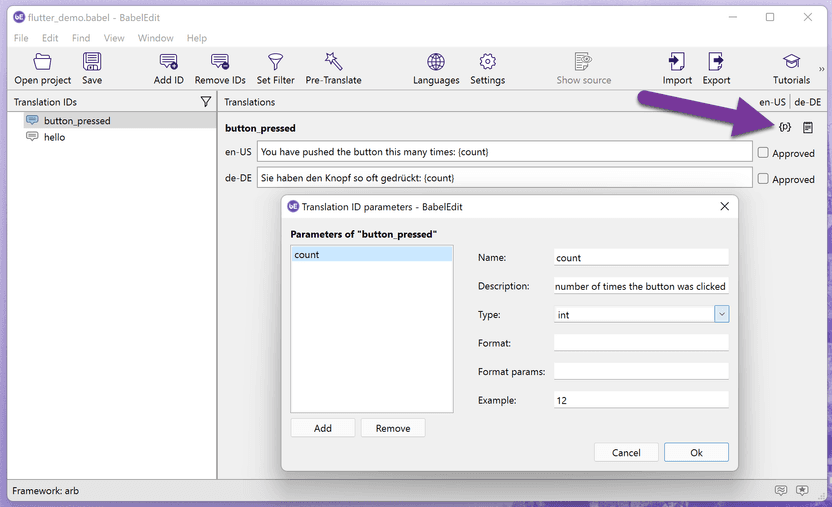
* Use the new placeholder editor to edit placeholder data (name, type, description,...)
## Translation description and placeholders
## Application Resource Bundle files (.arb)
A JSON based file format that also supports meta data for each entry.
```json
{
"@@last_modified": "2020-01-08T11:39:22.562134",
"pushCounterText": "You have pushed the button this many times:",
"@pushCounterText": {
"description": "A description for the push counter",
"type": "text",
"placeholders": {}
}
}
```
# Gettext PO files
This guide summarizes the essentials of working with gettext catalogs and shows how to edit PO files comfortably with BabelEdit. It focuses on general gettext and BabelEdit usage — no framework- or language-specific details, so you can follow along no matter your tech stack.
See [Working with PO files](#po-files) below for how to create PO files from a POT template and how to compile a PO file into an MO file.
## Creating a new project
Start BabelEdit and select a **gettext PO files** project:

Selecting a po-file / gettext project
### Adding files
Next drop your language files onto the dialog:
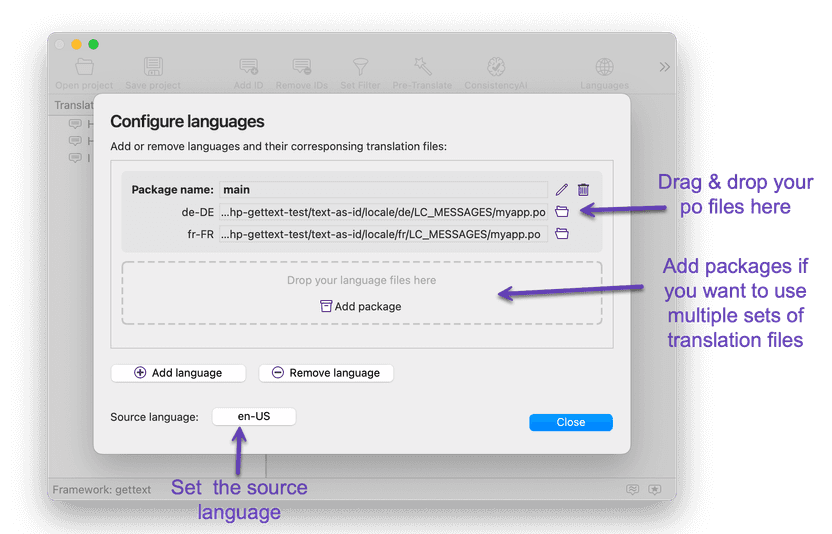
Adding po files to the project
### Setting the source language
The source language is used for machine translation. It's the language that is supposed to be filled with the text you want to translate into other languages.

Setting the source language for PO files
With PO files, you have 2 choices depending on how you use translation IDs. For more details about the differences, see [Unique IDs vs string literals](#unique-ids-vs-string-literals) below.
#### Option 1: Using unique IDs
Unique IDs are IDs like `main.greeting`. They contain an identifier for the translation. When using unique IDs, you need a separate file for each language.
In this case, select one of the languages in the upper part of the dialog.
#### Option 2: Using string literals
String literals are strings like "Hello World!". In this case, the translation is the source text.
In this case, select the language in the lower part of the dialog.
## PO‑specific features
### Fuzzy translations
gettext marks strings as "fuzzy" if there are slight changes in a translation ID. For example, changing "Hello World" to "Hello World!" usually marks the entry as “fuzzy”. Bigger changes like "Hello John Doe" will likely create a new ID and remove the old one during merging.
BabelEdit displays fuzzy translations with a warning icon:

PO file: Fuzzy flag
Review the translation, then click the triangle icon to clear the flag. You can toggle it while it’s visible. After you switch to another entry, a cleared flag won’t be shown again.
### Pluralization
When your messages use `ngettext()` (or similar), BabelEdit provides separate fields for singular and plural forms:

Pluralization in PO files
### Comments
BabelEdit supports comments in PO files. Use `xgettext` with `--add-comments` to extract comments from your source code. They are displayed above the text fields.
### Adding new translations
You can’t create new message IDs directly in BabelEdit because gettext’s command‑line tools would remove them during merging. To add new translations, add them in your source code and extract them again.
## Unique IDs vs string literals
You have two approaches:
* Use a unique ID for each translatable string. E.g. `main.greeting`.
* Use a string literal as the ID. E.g. "Hello World!"
The first option is more stable. Changing the text does not lose the link to existing translations. In addition, a descriptive ID gives translators helpful context (for example: `main.greeting` clearly tells where it’s used).
gettext can detect small changes and will mark affected entries as “fuzzy,” which is a friendly nudge to double‑check and confirm them. If the text changes significantly, the previous translation may no longer apply and a new entry will typically be created.
For example, changing "Hello World" to "Hello World!" usually just sets the entry to “fuzzy.” But changing it to "Hello John Doe" will likely create a new ID and remove the old one during merging.
Using string literals can be quicker when converting an existing project because you only need to wrap strings with a marker (often `_()`). Creating unique IDs takes a bit more setup time.
| Aspect | Unique IDs | String Literals |
| --- | --- | --- |
| **Example** | `main.welcome-screen.greeting` | `Hello World!` |
| **Context** | Provides explicit context: e.g. greeting on the welcome screen. Makes it easy to group related translations, such as `main.welcome-screen.description`. | No inherent context — the same string could appear anywhere in the app. |
| **Updating** | Changing the source text in the primary language does **not** affect other translations. | Changing the source text may break or invalidate existing translations. |
| **Integrating into an existing app** | Requires defining IDs for all strings and exporting them into a file. | Very simple: just wrap existing strings with a marker function (e.g. `_()`). |
| **Files** | Needs a `.po`/`.mo` file for **each language**. | Needs a `.po`/`.mo` file only for the translations. |
While both options are valid, we recommend using unique IDs since maintenance is easier.
## Working with PO files
### File types and workflow
Gettext uses three file types that work together in a simple cycle you repeat whenever source texts change:
1. POT — Portable Object Template
* Created by extracting translatable strings from your source code with tooling such as `xgettext`.
* Do not hand‑edit; regenerate when source texts change.
2. PO — Portable Object (one per language)
* Human‑readable translation files created from the POT.
* Updated by merging new/changed messages from the POT with `msgmerge`.
3. MO — Machine Object (one per language)
* Compiled, fast binary catalogs generated from PO files with `msgfmt`.
Typical loop:
* Extract → POT (with `xgettext`)
* Initialize or update → PO (with `msginit` for first creation, `msgmerge` for updates)
* Edit the PO files
* Compile → MO (with `msgfmt`)
### Creating and updating translation files (generic)
* Extract messages from your source code to a POT file (example):
* `xgettext --from-code=UTF-8 --add-comments -o myapp.pot `
* With `--add-comments`, comment blocks above marked strings are copied into the POT to give translators context.
* Many tools initially set the charset in the header to `CHARSET`. Replace it with `UTF-8` in the header line `Content-Type: text/plain; charset=CHARSET`.
* Create initial PO files for each language (run once per language):
* `msginit --locale de.UTF-8 --input myapp.pot --output locale/de/LC_MESSAGES/myapp.po`
* Update existing PO files when source texts change:
* Regenerate the POT: `xgettext ... -o myapp.pot`
* Merge into PO files: `msgmerge --update locale/de/LC_MESSAGES/myapp.po myapp.pot`
* After merging, review entries marked as “fuzzy” — they indicate approximate matches that need confirmation.
* Compile PO files into MO catalogs used at runtime:
* `msgfmt locale/de/LC_MESSAGES/myapp.po --output-file=locale/de/LC_MESSAGES/myapp.mo`
### Standard folder structure
Gettext looks for compiled catalogs in a well‑known layout. For a text domain named `myapp` and the languages `de` and `fr`, the following folder structure is expected:
* locale
* de
* LC\_MESSAGES
* myapp.po
* myapp.mo
* fr
* LC\_MESSAGES
* myapp.po
* myapp.mo
Notes:
* `LC_MESSAGES` is the mandatory directory name used by gettext.
* Languages can be simple (`de`) or include region/encoding (`de_DE`, `de_DE.UTF-8`).
* Use UTF‑8 for source and translation files where possible.
* For production, it's sufficient to deploy the MO files only.
* It makes sense to keep the .po files in the same structure so that they are easy to find and update.
## Tutorials
If you work with PHP, try our step‑by‑step tutorial: [Translation with gettext + PHP](https://www.codeandweb.com/babeledit/tutorials/translation-with-gettext-and-php.md).
# i18next
A complete tutorial including a small demo project is available here: [How to translate your React app with react-i18next](https://www.codeandweb.com/babeledit/tutorials/how-to-translate-your-react-app-with-react-i18next.md)
i18next allows you to use multiple translation files, grouped in a directory:
* translations
* de
* common.json
* mainscreen.json
* fr
* common.json
* mainscreen.json
* en
* common.json
* mainscreen.json
You can think of the different files as name spaces.
The preferred file structure is [JSON with nested namespaces (Namespaced JSON)](https://www.codeandweb.com/babeledit/documentation/frameworks/json.md#namespaced-json).
BabelEdit asks you for the containing the files for one language.
# Java properties files (.properties)
BabelEdit supports these 2 formats for properties files:
* Latin-1 (ISO 8859-1)
* UTF-8
You can convert them from one into the other encoding in your project settings.
Example:
```yaml
app.description = A simple entry in a .properties file
app.title = Hello World
```
# JSON
You can edit 3 basic types of JSON file formats. The difference is how the translation data is organized in the files.
* [JSON with nested namespaces (Namespaced JSON)](#namespaced-json)
* [JSON with namespaces in key (Flat JSON)](#flat-json)
* [JSON with plaintext keys](#plaintext-json)
## JSON with nested namespaces (Namespaced JSON)
The JSON file contains nested objects which hierarchically structure the translations. Each language is stored in a separate file.
Example:
```json
{
"main": {
"sidebar": {
"project": "Project",
"title": "Name of the project."
},
"statusbar": {
"statusbar_empty": "Empty! No entries added yet.",
"statusbar_ok": "Ok."
}
}
}
```
Visualisation in BabelEdit:
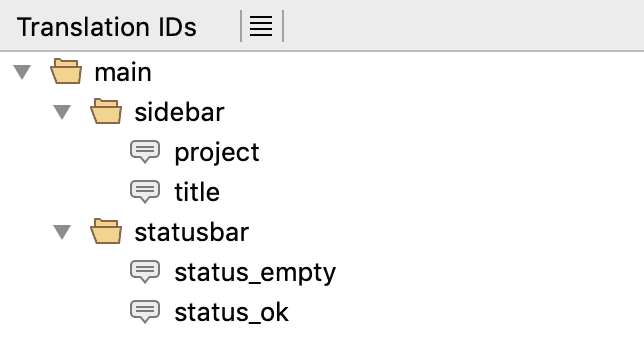
## JSON with namespaces in key (Flat JSON)
JSON keys contain complete translation ID as string. The translation IDs use "." to hierarchically structure the translations.
Example:
```json
{
"main.sidebar.project": "Project",
"main.sidebar.title": "Name of the project.",
"main.statusbar.status_empty": "Empty! No entries added yet.",
"main.statusbar.status_ok": "Ok."
}
```
BabelEdit can display the file in a tree structure as long as it does not contain tree conflicts. E.g. you can't create a translation for `main.sidebar` and `main.sidebar.title` because the latter would mean that `main.sidebar` is a folder (branch) in the tree where the first would mean that is a translation (leaf). BabelEdit falls back to [JSON with plaintext keys](#plaintext-json) in this case. You can convert the project back into the tree structure in the project settings after fixing the conflicts.
Visualisation in BabelEdit:

## JSON with plaintext keys
Text in source language is used as translation ID. E.g. the key is in English, the text itself in German.
BabelEdit does not split the IDs at the "." character and thus can only display a flat list of entries and no tree.
This file mode is chosen by BabelEdit if it detects a tree conflict in a [JSON with namespaces in key](#flat-json) file.
Example:
```json
{
"Project": "Projekt",
"Name of the project.": "Name des Projekts",
"Empty! No entries added yet.": "Leer! Es sind noch keine Einträge vorhanden.",
"Ok.": "Ok."
}
```
Visualisation in BabelEdit:
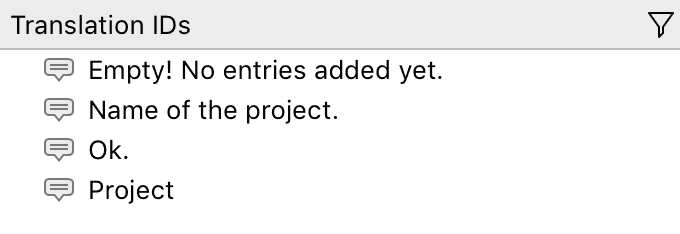
It at first seems to be a great idea to use this format because you don't have to think about creating unique IDs for all the translations but it has some severe disadvantages:
* Each change (even correcting a typo) in the source language forces you to update all translation files
* There is no context information. The translator has no idea where a translation is used
* You can't use different translations depending on the context: E.g. a short translation or abbreviation for a button and a long text for a table heading.
* BabelEdit can only display a long list of entries
## How to change/convert the JSON format
The JSON format used for your translation files can be changed in the project settings:
* click on the _Settings_ cog wheel in BabelEdit's tool bar
* change the value of the _Format_ field
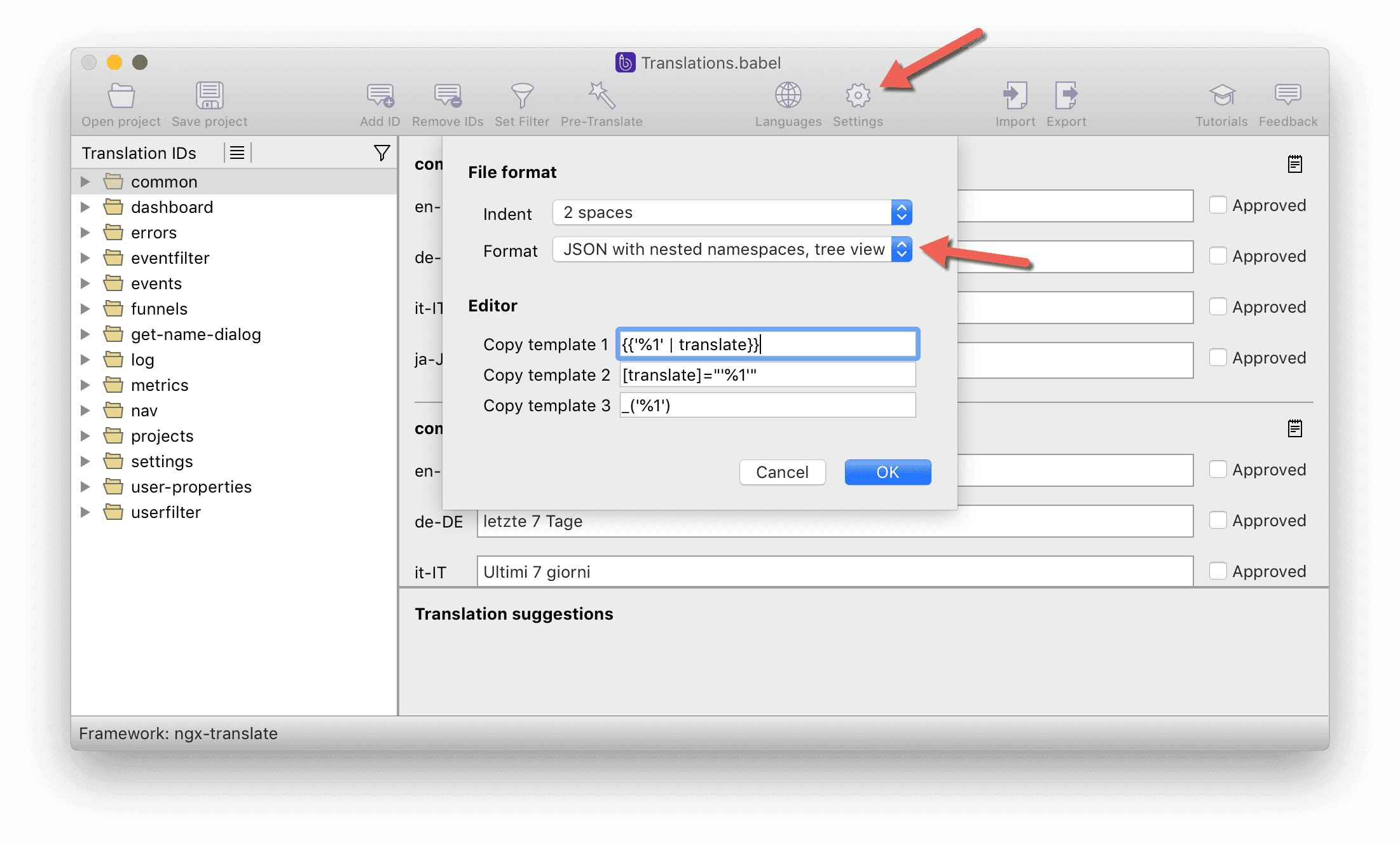
### Handling Errors: Failed to create translation ...
If you're changing the format to _"JSON"_ or _"Namespaced JSON"_ you might get an error message similar to:
Failed to create translation 'main.title.tooltip': There is already a translation ID 'main.title'. Failed to create translation 'main.title': There are already other translation IDs starting with 'main.title.\*'
For an hierarchical visualization of the translation IDs it isn't allowed that one ID is prefix of another ID. If you don't need a tree view presentation of your IDs, please use the "Plaintext JSON" file format.
## JSON file indenting
BabelEdit can write the JSON files in 4 possible ways:
* compact, without spacing
* indented with 2 spaces
* indented with 4 spaces
* indented with tabs
While the first format uses the least amount of memory it is not recommended to use it if you want to diff the language files in your version management system.
Select the format you want from the project settings.
# Laravel
In Laravel you have 2 choices:
* [PHP files](#laravel-php) for the translations
* [JSON files](#laravel-json) for the translations
A complete tutorial including a small demo project is available here: [How to translate your Laravel project](https://www.codeandweb.com/babeledit/tutorials/how-to-translate-your-laravel-project.md)
## JSON files
You can use all JSON formats for Laravel:
* [JSON with nested namespaces (Namespaced JSON)](https://www.codeandweb.com/babeledit/documentation/frameworks/json.md#namespaced-json)
* [JSON with namespaces in key (Flat JSON)](https://www.codeandweb.com/babeledit/documentation/frameworks/json.md#flat-json)
* [JSON with plaintext keys](https://www.codeandweb.com/babeledit/documentation/frameworks/json.md#plaintext-json) - not recommended
## PHP files
BabelEdit can read PHP files that simply return an array.
The PHP parser in BabelEdit is restricted and does not perform calculations, nor does it support variables. BabelEdit does not maintain comments, or the file structure of the original php file.
BabelEdit's php parsing engine is limited to a return statement with a nested array structure. Variables, string concatenation and other constructs are not permitted.
Comments are ignored and not written back into the .php file on save.
```php
[
"documentation" => "Documentation",
"news" => "News"],
"title" => "Translation demo"
];
```
# React
BabelEdit supports the following translation modules for React:
* [react-intl](#react-intl)
* [react-i18next](#react-i18next)
* [@lingui/react](#react-lingui)
## react-intl
A complete tutorial including a small demo project is available here: [How to translate your React app with react-intl](https://www.codeandweb.com/babeledit/tutorials/how-to-translate-your-react-app-with-react-intl.md)
The preferred layout for the react-intl project is to keep the translation files in your `translations` folder and name the json files with the translations according to the language code:
* translations
* de.json
* en.json
* fr.json
The preferred file format is [JSON with namespaces in key (Flat JSON)](https://www.codeandweb.com/babeledit/documentation/frameworks/json.md#flat-json).
### Extracting messages with babel-plugin-react-intl
You can extract your translations from your source files using `babel-plugin-react-intl`.
The plugin generates so-called message files that contain all IDs and strings to translate. BabelEdit can read these files including the description and default message.
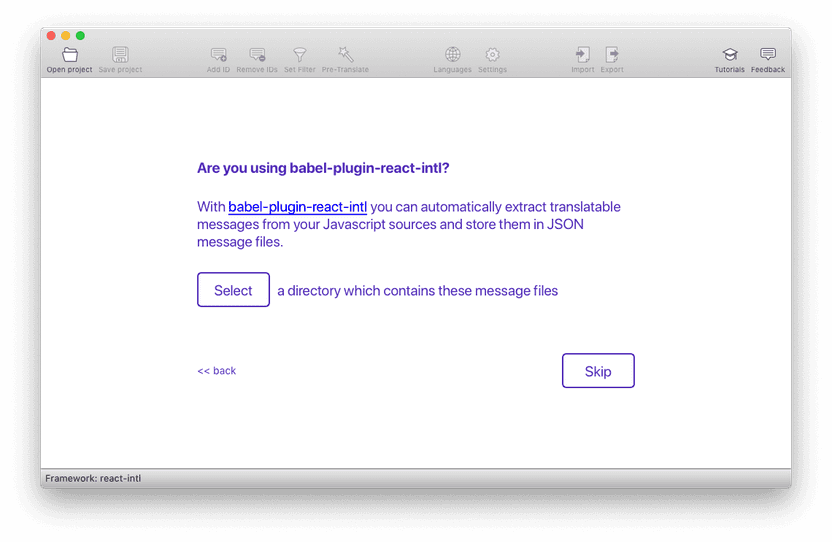
If you don't use the extraction plugin simply skip this step. Setting the message file directory is later still possible from the project settings.
## i18next
Please use a [i18next](https://www.codeandweb.com/babeledit/documentation/frameworks/i18next.md) project to work with react-intl.
## LinguiJS
LinguiJS is supported with the JSON catalog file format. Please use a [Generic JSON](https://www.codeandweb.com/babeledit/documentation/frameworks/json.md) project to work with React and LinguiJS.
# Ruby On Rails
You can add Ruby On Rails YAML files to BabelEdit. Pluralization rules are automatically detected and supported across all languages.
# Svelte
Svelte is supported using svelte-i18n. See our tutorial [How to translate your Svelte Web App](https://www.codeandweb.com/babeledit/tutorials/how-to-translate-your-svelte-web-app.md) for details.
# Vue.js
BabelEdit support translations using vue-i18n in separate .json files for each language.
See our [vue tutorial](https://www.codeandweb.com/babeledit/tutorials/how-to-translate-your-vue-app-with-vue-i18n.md) for more information.
## vue-i18n (.json)
BabelEdit supports one language per .json file with [nested JSON objects](https://www.codeandweb.com/babeledit/documentation/frameworks/json.md#namespaced-json) You can either use require/import to add these files to your project or load them at runtime.
## vue-i18n (.vue)
We removed the support for _.vue_ files with newer releases because nobody was really using this format. Using the translations this way also comes with big disadvant disadvantages. See [Why using i18n sections in vue.js single files components is a bad idea](https://www.codeandweb.com/babeledit/tutorials/why-using-i18n-sections-in-vue-single-component-files-is-a-bad-idea.md)
## Vue.js Single File Components (.vue) - deprecated
BabelEdit supports single file components in .vue files with vue-i18n. The translations for all languages have to be enclosed in a `` section. The current format supported is JSON. The top level element is always the language-code (e.g. `en`) the child keys build the translation id.
We'll remove the support for these vue.js single file components with the next BabelEdit release. See our article [Why using i18n sections in vue.js single files components is bad](https://www.codeandweb.com/babeledit/tutorials/why-using-i18n-sections-in-vue-single-component-files-is-a-bad-idea.md) for details.
Removing support for the .vue files does not seem to make a big difference since only 0.5% of our user base use these files. Almost all Vue.js users keep their translations in .json files anyways.
```html
{{ $t('hello') }}
{
"en": {
"hello": "Hello i18n in SFC!"
},
"de: {
"hello: "Hallo Welt!
}
}
```
If you want to add a file to BabelEdit it requires at least an empty `` section to show up in the project's file list.
# YAML
Please choose the **Generic YAML** format for all frameworks that don't have dedicated support and use YAML files to store their translations.
BabelEdit supports YAML format version 1.2 with one language per file — e.g. in a structure like this:
* translations
* de.yaml
* en.yaml
* fr.yaml
YAML files are supported for [Generic YAML](https://www.codeandweb.com/babeledit/documentation/frameworks/yaml.md) and [Ember.js](https://www.codeandweb.com/babeledit/documentation/frameworks/ember-js.md)
BabelEdit supports YAML 1.2 with one file per language.
```yaml
product:
title: Hello world!
info: The {product} costs {price, number, USD}.
```
# Features Overview
Explore BabelEdit's core features. Click a topic to learn more.
* Machine Translation: [/babeledit/documentation/machine-translation](https://www.codeandweb.com/babeledit/documentation/machine-translation.md)
* ConsistencyAI: [/babeledit/documentation/consistency-ai](https://www.codeandweb.com/babeledit/documentation/consistency-ai.md)
* Spell Checker: [/babeledit/documentation/spellchecker](https://www.codeandweb.com/babeledit/documentation/spellchecker.md)
* Translation Memory: [/babeledit/documentation/translation-memory](https://www.codeandweb.com/babeledit/documentation/translation-memory.md)
# Machine Translation
BabelEdit makes use of external machine translation services to speed up your translation process. Currently, the following services are supported:
* DeepL
* Google Translate
* Microsoft (Bing) Translate
* OpenAI (ChatGPT)
Google and Microsoft support the biggest number of languages. Some users say that DeepL has better quality — but I guess that depends on the input...
One real advantage of DeepL over the other two is that it distinguishes between en-US and en-GB.
## Suggestions
BabelEdit suggests one or more translations for the current sentence: Use `CMD/CTRL` + `Number` to insert the suggestion into the current edit field.

Use the buttons in the top right of the panel to switch between the translations services. Google is used as a fall-back if DeepL does not support the current language.
You can disable the machine translation view in the **View** menu by un-checking **Show machine translations** or by clicking on the icon in the bottom right corner of the window.
## Pre-Translate
Pre-translate is suggestions on steroids: Select the language you want to add and BabelEdit automatically fills all empty phases.
Pre-translate is available in the toolbar when clicking on the magic wand icon:

The default behaviour is to translate only the messages selected in the left panel (**Translation IDs**). You can change this with the **Translate selected items only** checkmark.
BabelEdit also clears the **Approved** flag for the translated messages. Uncheck the **Reset Approved flag** to leave the flag unchanged.
## Context and Formality Settings
Both **DeepL** and **OpenAI** translation services support settings for **formality** and **context**. These options can be configured in the project settings (via the cogwheel icon in the toolbar), in the pre-translate dialog, or within the suggestions view.
### Formality
You can choose from the following formality settings:
* **Default**: Let the translation engine determine the appropriate tone.
* **Prefer formal language**: A more formal tone will be used. For example, in German, "Sie" will be preferred over "du."
* **Prefer informal language**: A more casual tone will be applied. In German, "du" will be used instead of "Sie."
These preferences are automatically applied to all supported languages that distinguish between formal and informal forms.
### Context
You can also provide additional context to improve translation accuracy. The context should be written in your primary language.
* **DeepL** supports unlimited context length.
* **OpenAI** processes only the first 200 characters of the provided context.
Providing relevant context can help the translation engines produce more accurate and natural-sounding results.
## Translation Credits
We currently use 3rd party translation APIs for both features. As you might know, these APIs is not free. This is why we can't include unlimited translations with your license.
BabelEdit keeps track of amount of translations used. We included 125.000 credits in every new license - even the trial license gets a small quota for exploring the feature. You can use the feature as long as the credits are not depleted. After that you can buy more [Translation Credits](https://www.codeandweb.com/store/babeledit.md#quota).
The translation credits used are calculated in characters of the primary language used for the translation. E.g. `Hello World!` counts as 12 characters. The number of characters in the result does not matter.
The credits are used per translation service. E.g. if you request the translation from DeepL and Google in the suggestions view, it counts twice — even it the translation result is the same. This is simply because we have to pay both services for the translation.
BabelEdit locally caches requests to the translation server until you close BabelEdit. This means that if you display a suggestion for the same message in the same language from the same service twice it only counts as one request. BabelEdit makes new requests after a restart.
## Privacy & what happens to your data
BabelEdit submits the text of the primary language to our service, and we submit it from here to the 3rd party translation services we use. We cache the response we receive from the service for faster delivery in the future. If you want to remove your cached translations, please send us a notice using the _Help_ button in the lower right corner.
The data we submit to the 3rd party service does _not_ contain any personal information about you (e.g. name or email) except what is contained in the texts you submit for translation. BabelEdit does not filter the texts. E.g. if the text contains your email address, twitter handle or something else — this is passed on to the translation service. This is why it's not permitted to use the Pre-Translate / Suggesions feature with any personal data.
Please also consult our [Privacy Policy](https://www.codeandweb.com/privacypolicy).
# ConsistencyAI
ConsistencyAI is a unique feature within BabelEdit, designed to ensure translation consistency against the primary language. This feature covers:
* Maintaining identical content or meaning
* Upholding punctuation rules
* Adhering to formatting standards
For this purpose, we delegate selected translations to a third-party AI service (currently OpenAI).
## Submitting Translations
You can activate ConsistencyAI by clicking the brain icon located on the BabelEdit toolbar.
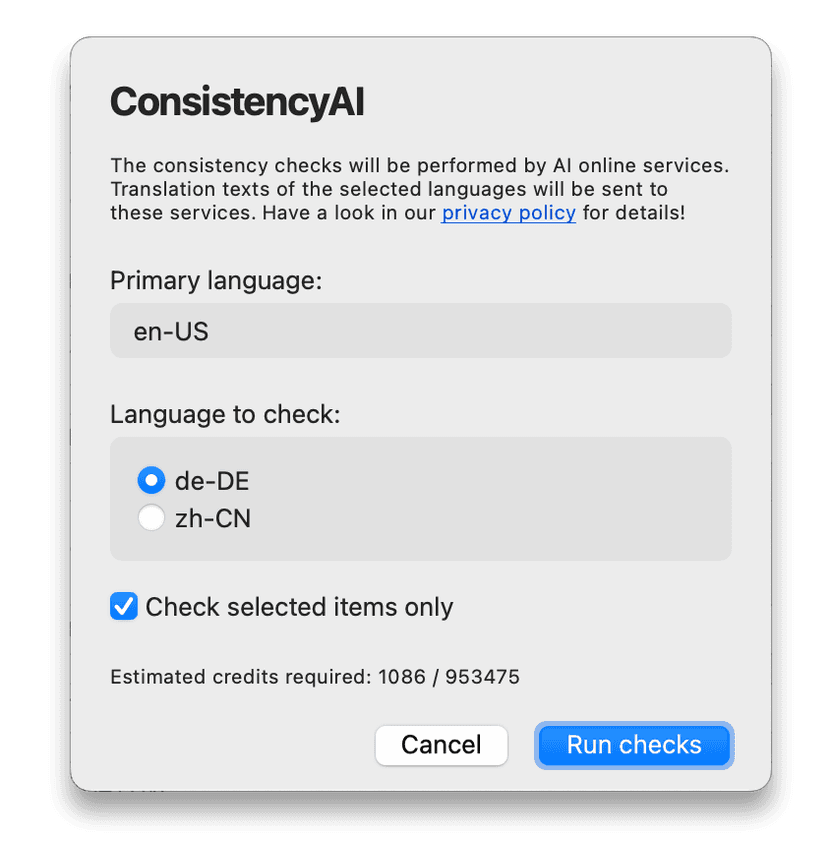
Configuring ConsistencyAI to process your translations.
ConsistencyAI is designed to detect inconsistencies between your primary language and any of your translations.
You can choose the language you wish to check. By default, all checks are performed on the messages displayed in BabelEdit's center view. To run checks on all translations, deselect the _Check selected items only_ option.
> **Note:** We strongly advise running checks on smaller batches instead of processing all translations in your project at once.
## Reviewing the changes
After some time, you should see a dialog similar to this one:
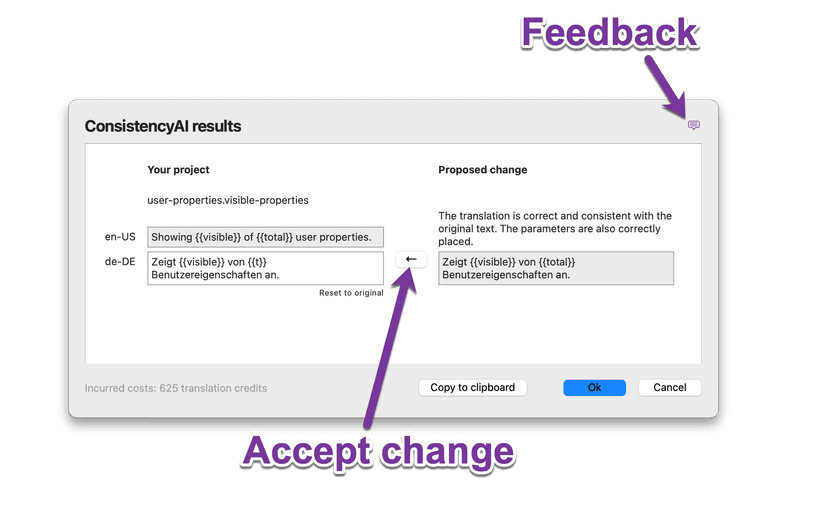
Results from the ConsistencyAI
To incorporate the proposed changes from ConsistencyAI into your text, click on the left-pointing arrow button (←) located next to the suggested edits. If you prefer, you can manually edit these changes.
To revert any changes made, click on the "Reset to Original" button found below your translated text.
The bottom left corner of the dialog displays the number of credits you have used.
Your feedback helps us improve our tool. To share your thoughts, please click on the "Speech Bubble" icon in the top right corner.
## Examples
### Checking the translations for punctuation differences
The consistency check detects differences in punctuations. Such as missing or changed punctuation marks.
en-US:
Your project
Proposed change
en-US:
Hello world!
Added missing exclamation mark to match the original text.
de-DE:
Hallo Welt
←
Hallo Welt!
### Finding differences in translations
It also detects incorrect translations or differences in the meaning of a translation.
en-US:
Your project
Proposed change
en-US:
You have {num} pears in your basket!
The original text was translated incorrectly. The word for 'pears' is German is 'Birnen', not 'Äpfel' which means 'apples'.
de-DE:
Sie haben {num} Äpfel in ihrem Korb.
←
Sie haben {num} Birnen in Ihrem Korb.
### Finding inconsistencies in parameters
BabelEdit checks for changed or missing parameters and suggests corrections.
en-US:
Your project
Proposed change
en-US:
Inventory: {s} Screws, {n} Nails
The parameter in the translated text was incorrect. It was corrected from {m} to {n} to match the original text.
de-DE:
Inventar: {s} Schrauben, {m} Nägel
←
Inventar: {s} Schrauben, {n} Nägel
## Tips and restrictions
### Help us improve by submitting examples
We continuously strive to enhance the functionality of the ConsistencyAI feature, and your feedback is critical in this process. If you encounter any unexpected results, please use the small speech bubble icon in the top right corner of the result dialog to submit examples.
### Save credits by submitting multiple items simultaneously
Submitting several translations at once provides the AI with more context, potentially leading to improved results. It's also a cost-effective strategy as the instructions for checking translations only need to be submitted once for multiple entries.
### Avoid submitting all at once
The translation process can be time-consuming. Instead of submitting your entire project at once, break it down into manageable portions.
### Utilize Pre-Translate for text translation
While the ConsistencyAI feature can supply missing translations, this method is significantly more costly than the [Pre-Translate](https://www.codeandweb.com/babeledit/documentation/machine-translation.md) function.
### Exercise patience
The process may take a while, so patience is key. Our time estimates can be unreliable due to unpredictable AI server load and the number of inconsistencies found. Be aware that pressing cancel may forfeit any results and potentially lose credits for translations already in processing.
### Be discerning: the AI could be incorrect
Our service runs on the GPT-4 model from OpenAI, which, while powerful, may occasionally make mistakes or suggest inaccurate changes.
### Running the service multiple times may yield different results
We can't guarantee that all inconsistencies will be caught in one pass. Running the function multiple times may yield different results and suggestions. It's possible that the system may recommend a change, only to suggest reversing it in the next run.
### Think twice before aborting a job
If a job is taking too long, you have the option to abort it. However, this might not be the best choice:
* The aborted job will not provide any results.
* Any translations already submitted for processing that can't be halted will consume credits.
## Translation credits
We utilize 3rd party translation APIs for these features. As you might know, these APIs are not free. That's why we introduced Translation Credits.
ConsistencyAI assesses text in both the primary and target languages, makes alterations, and provides explanations for these modifications. The billing for this AI service depends on the number of characters sent and received. Since the exact changes are unknown in advance, we can only provide a rough estimate based on similar previous requests. The final credit charge is determined by the actual cost incurred by the AI service and may differ from our initial estimate.
BabelEdit keeps track of the amount of credits used. We've included 125,000 credits with every new license - even the trial license gets a small quota for exploring the feature. You can use the feature as long as your credits last. Once your credits are depleted, you can purchase more [Translation Credits](https://www.codeandweb.com/store/babeledit.md#quota).
## Privacy & what happens to your data
BabelEdit submits the text of the primary language and the language you want to check to our service, which we then forward to the 3rd party AI services we use (OpenAI).
The data we submit to the 3rd party service does _not_ contain any personal information about you (e.g., name or email) except what is contained in the texts you submit for processing.
> **Warning:** BabelEdit does not filter the texts it submits for the consistency checks. Thus, if the text contains any personally identifiable information, such as your email address or Twitter handle, this information will also be passed on to the 3rd party service. Therefore, avoid using ConsistencyAI with any personally identifiable data or any other information you do not wish to submit to this service.
Please also consult our [Privacy Policy](https://www.codeandweb.com/privacypolicy).
# Spell checker
BabelEdit's spell checker comes with a bunch of bundled languages, but it supports way more. For us it's not possible to put all of them in the download because of [license restrictions](#licenses). It would also not make much sense to increase the download size with languages you most likely won't need.
## Installing dictionaries
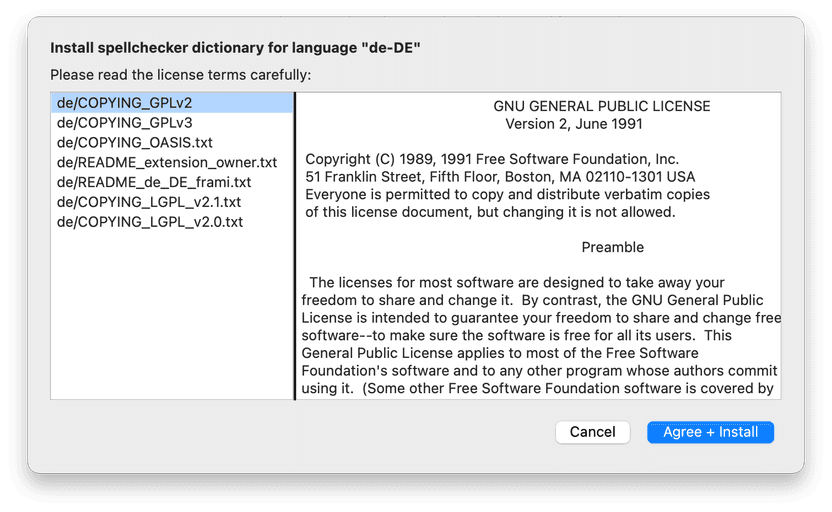
To make it as easy as possible for you to add new language, BabelEdit asks if you want to download additional spell checkers:

Click **Install...**. Next read the license agreement for the dictionary. Click **Agree + Install** to install the dictionary if you agree with the dictionary's license terms:
## Supported languages
BabelEdit uses Hunspell dictionaries, compatible with OpenOffice and LibreOffice. The following languages are supported:
* Afrikaans
* Albanian
* Arabic
* Belarusian
* Breton
* Bulgarian
* Catalan
* Croatian
* Czech
* Danish
* Dutch
* English
* Estonian
* French
* Galician
* German
* Greek
* Gujarati
* Hebrew
* Hindi
* Hungarian
* Icelandic
* Indonesian
* Italian
* Latvian
* Lithuanian
* Norwegian (Bokmål)
* Norwegian (Nynorsk)
* Polish
* Portuguese
* Romanian
* Russian
* Serbian (Latin)
* Slovak
* Slovenian
* Spanish
* Swahili
* Swedish
* Telugu
* Thai
* Ukrainian
* Vietnamese
## Licenses
Most dictionaries are licensed under GPL or LGPL. License details can be found in the folder of each dictionary. The GPL license makes it unfortunately impossible for us to directly bundle the dictionaries with BabelEdit's installer.
The language pack is also available from [GitHub](https://github.com/CodeAndWeb/dictionaries).
## Additional dictionaries (LibreOffice / OpenOffice)
More dictionaries are available from the [OpenOffice Extensions repository](https://extensions.openoffice.org/en/search?f%5B0%5D=field_project_tags%3A157) or [LibreOffice repository](https://extensions.libreoffice.org/extensions?getCategories=Dictionary&getCompatibility=any). You can download them as .otx files.
Open BabelEdit's preferences and click the _Open_ button in the _Spell checking_ tab. The opens a file system folder containing the installed dictionaries.
Change the downloaded .oxt extension to .zip and extract the contents to the `dictionaries`. Restart BabelEdit — the new dictionary should now be available.
## Custom dictionaries
BabelEdit uses Hunspell, and you can use any compatible dictionary. A dictionary for BabelEdit must consist of at least 3 files:
* dictionary.xcu - Description file
* dictionary.aff - Affix file
* dictionary.dic - Dictionary file
This is a template for a minimalistic .xcu file that can be loaded by BabelEdit:
```xml
%origin%/dictionary.aff %origin%/dictionary.dic
DICT_SPELL
xx-XX
```
The `` field inside the `Locations` `` must contain the file names of the dictionary's affix and dictionary file. The `Locales` value must contain a list of locales for which the dictionary is activated.
# Similar Phrases
Similar Phrases is a built-in translation memory like feature in BabelEdit that helps you translate more efficiently by showing previously used phrases and their translations. This feature automatically identifies similar text fragments in your project to:
* Reuse existing translations
* Maintain consistent wording across languages
* Identify inconsistencies in source text
### Speeding up the translation process
When translating content, you'll often encounter phrases similar to ones you've translated before. Instead of translating from scratch each time, Similar Phrases lets you quickly reuse existing translations, saving time and effort.
### Consistency in the translations
Similar Phrases helps maintain consistency by showing how you've previously translated words and phrases in similar contexts. For example, when translating the English word "cancel" to German, you might choose between synonyms like "abbestellen" or "kündigen". The Similar Phrases feature shows which variant you've already used in your project, helping you maintain consistent terminology.
### Consistency in the source language
A nice side-effect is that Similar Phrases as implemented in BabelEdit also works in your source language. E.g. if you used "Cancel subscription" and "Stop subscription" you'll see both variants in the **Similar Phrases** view.
## How can I use Similar Phrases in BabelEdit?
To activate Similar Phrases simply click on the in the bottom right corner of BabelEdit:

This shows a pane at the bottom of the center view with phrases that you used in a similar context.
As you see in the screenshot above, _Cancel subscription_ was already translated in a different context. You can simply pick one of the already translated phrases using the keyboard shortcut, or by clicking on the line with the translation you want.
As you also see, it was used quite inconsistently in that file. There is one inconsistency in English: _Cancel subscription_ vs _Stop subscription_ and another one in the German translation: _Tarif abbestellen_ vs _Tarif kündigen_.
## Does BabelEdit have a Translation Memory?
Not directly. The similar phrases is a lightweight translation memory to help you reuse existing translations and keep wording consistently.
The database is automatically built from your current translation project. There's no need to manually add or remove entries.
Its currently biggest limitation is that you can't import or export TMX (**T**ranslation **M**emory e**X**change) files.