---
title: "How to translate your React app with react-i18next"
description: "You will learn how to translate your React app with react-i18next. The tutorial also explains how to manage the translations json files with BabelEdit."
canonical: "https://www.codeandweb.com/babeledit/tutorials/how-to-translate-your-react-app-with-react-i18next"
date: "2025-08-19T00:00:00.000Z"
modified: "2025-08-19T00:00:00.000Z"
source: "html"
---
# How to translate your React app with react-i18next
Joachim Grill, Andreas Löw
[babeledit](https://www.codeandweb.com/babeledit/tutorials.md), [tutorial](https://www.codeandweb.com/tags/tutorial), [react-i18next](https://www.codeandweb.com/tutorials/react-i18next.md), [react](https://www.codeandweb.com/tutorials/react.md)
[GitHub](https://github.com/CodeAndWeb/react-i18next-translation-example)
## What you are going to learn
In this tutorial, you will learn how localization works in a React.js app. The tutorial not only provides step-by-step instructions, but also includes a complete example on [GitHub](https://github.com/CodeAndWeb/react-i18next-translation-example).
> **Note:** This tutorial covers **react-i18next**.
> We also have a tutorial covering [react-intl / FormatJS](https://www.codeandweb.com/babeledit/tutorials/how-to-translate-your-react-app-with-react-intl.md).
## Set up your first React app (optional)
We're setting up a small React application to learn how localization works. You can skip this section if you prefer to use your own application.
We'll use [Vite](https://vitejs.dev) for building the app, but any other environment like Next.js or Remix will work as well.
```bash
npm create vite@latest react-i18next-translation-example -- --template react
```
With the following commands, you create an empty React app and start it:
```bash
cd react-i18next-translation-example
npm install
npm run dev
```
Open http://localhost:5173 and see the welcome message rendered by the created app.
## Add internationalization with react-i18next
To use **react-i18next** for localization, add it to your project:
```bash
npm install react-i18next
```
You might also want to add prop-types:
```bash
npm install prop-types
```
The file `src/main.jsx` renders the `App` react element into your DOM. To make the `i18next` configuration available in all our components we have to wrap the `App` component with `I18nextProvider`. It expects an `i18next` instance which must be initialized before:
src/main.jsx
```js
import { StrictMode } from 'react'
import { createRoot } from 'react-dom/client'
import {I18nextProvider} from "react-i18next";
import i18next from "i18next";
import App from './App.jsx'
import './index.css'
i18next.init({
interpolation: { escapeValue: false }, // React already does escaping
});
createRoot(document.getElementById('root')).render(
,
)
```
## Using translations in your app
You can use translations in your function components and High Order Components (HOC). Both work similarly, but require a slightly different setup.
### Using translations in function components
To use translations, you have to call `useTranslation()` which returns the translation function `t()`.
The first parameter to the `t()` function is the ID of the string to display. The easiest way is to just wrap the original text, e.g. `t('Hello World!')`. However, this is not recommended because it does not give the translator much context. It's also impossible to change the representation of the string depending on its use. For example, a translation might need to be shortened when used as a table header compared to its use as a label.
A better approach is to use IDs, e.g. `t('app.title')`. With this, the translator now has more context — it's used as the title of the app.
Additionally, you can pass a namespace to `useTranslation()` to better organize your messages. For example, use `useTranslation('main')` to specify a single namespace, or `useTranslation(['main', 'common'])` if you need to access translations from multiple namespaces.
Create a new file `src/components/FunctionComponent.jsx`:
src/components/FunctionComponent.jsx
```jsx
import {useTranslation} from "react-i18next";
export default function FunctionComponent() {
const {t} = useTranslation("common");
return (
<>
{t('components.func-component.title')}
{t('components.func-component.text')}
);
}
```
### Using translations in High-Order-Components
Some additional work is required if you want to use High-Order-Components (HOC). The `t()` function is available through the `props`, but you also have to wrap your component with `withTranslation()` to get access to the translation methods:
src/components/HighOrderComponent.jsx
```jsx
import {Component} from "react";
import {withTranslation} from "react-i18next";
import PropTypes from "prop-types";
class HighOrderComponentBody extends Component {
render() {
const { t } = this.props;
return (
<>
{t('components.hoc-component.title')}
{t('components.hoc-component.text')}
)
}
}
HighOrderComponentBody.propTypes = {
t: PropTypes.func.isRequired,
}
export const HighOrderComponent = withTranslation('common')(HighOrderComponentBody)
```
## Use the components in your app
```ts
import './App.css';
import FunctionComponent from "./components/FunctionComponent.jsx";
import {HighOrderComponent} from "./components/HighOrderComponent.jsx";
function App() {
return (
);
}
export default App;
```
## Creating the translation files
Create a new folder in the source directory called `translations` and make subfolders for each language you want to translate your app to. Use the language codes for these subdirectories, e.g. `en` and `de`.
Inside create 2 empty JSON files. Use the name `common.json` for these files. This is the same name as the namespace you passed to the `useTranslation()` or `withTranslation('common')` function.
src/translations/en/common.json
```json
{}
```
src/translations/de/common.json
```json
{}
```
## Editing translation files
You could edit these files in a standard text editor — it's JSON and not really complicated, right?
When starting with a handful of translations, you are absolutely right. But over time, as you add, remove, and rename translations, the translation files can get out of sync. There may be some IDs in the German file that are not in the English file and vice versa. Using a diff tool to get them back in sync is not practical because every line contains changes.
This is why we've created BabelEdit — changes are always synced across all languages. You can use machine translation to preview your app in different languages. You can add comments for translators and many more features. Here's a screenshot of what it looks like:
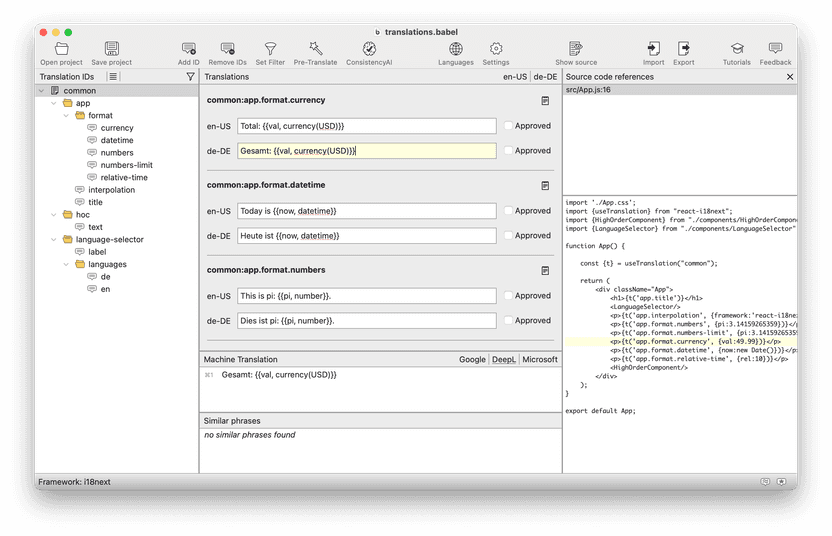
BabelEdit is available as a free trial. After that, it costs a bit of money — but you only have to pay once since it's a perpetual license and no subscription.
[Download BabelEdit 5.7.0](https://www.codeandweb.com/babeledit/download/5.7.0/win)
for Windows
[Also available for macOS and Linux](https://www.codeandweb.com/babeledit/download.md)
After installation, drag & drop your project folder onto BabelEdit. It automatically detects the project type (i18next) and also finds the existing translation files.
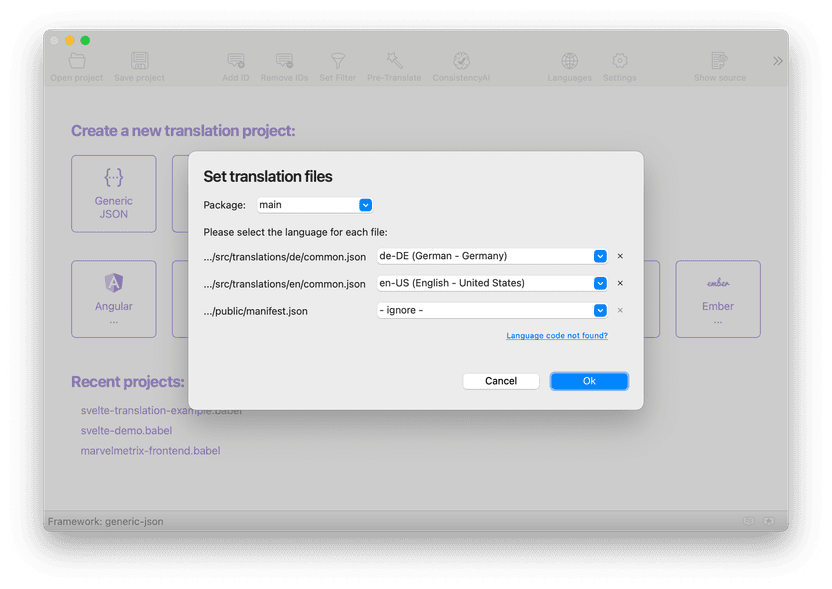
Configuring your react-i18next project in BabelEdit
Now add your first translation ID: Click **Add ID** in the toolbar or press `⌘`+`n` (macOS) or `CTRL`+`n` (Windows). Enter `common:components.func-component.title` as Translation ID. `common` is the namespace you passed to `useTranslation()` or `withTranslation()`, `components.func_component.title` is the ID passed to the `t()` function.
In the center view, enter "Function component" in the **en-US** labeled text field.
| ID | Text |
| --- | --- |
| `common:components.func-component.title` | Function component |
You can simply enter the text in German for the `de.json` file, but if you don't speak that language, you can enable BabelEdit's machine translation feature (menu item **View** → **Show machine translations**). BabelEdit might ask you to configure the _Source language_ for machine translation. Select **en-US**.
Then it will display a translation for the currently selected item. Click on the translated text or press `⌘`+`1` or `CTRL`+`1` to accept the proposed translation.
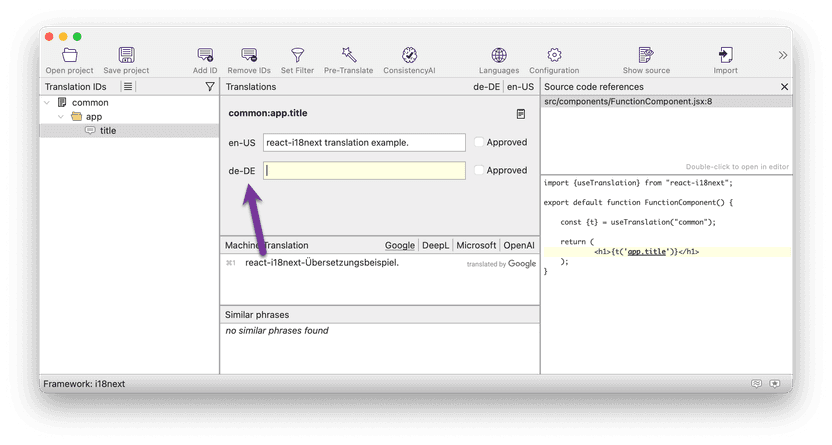
Using machine translation to speed up development with i18next
Add the following translations:
| ID | Text |
| --- | --- |
| `common:components.func-component.text` | This text is used inside a function component! |
| `common:components.hoc-component.title` | HOC component |
| `common:components.hoc-component.text` | This text is used inside an hoc component! |
> **Note:** Hint: If you've already selected translations in the left panel, adding a new ID automatically suggests the prefix of that ID, so you don't have to type it multiple times. E.g. if you selected `common:components.xyz`, adding a new ID suggests `common:components.` and you only have to complete the text.
Select the root node in the tree view and click the **Pre-Translate** button in the toolbar to translate them all at once to German:

Use pre-translate to translate multiple strings at once
Click on **Save** in the toolbar. BabelEdit first asks you for the name of the project file — enter _translations.babel_ and save it to the root folder of your project. It contains the project configuration and comments. **Save** also updates the JSON files which are now ready for use in your source code!
## Loading translation files
Now that you have the translation files, it's time to load them into the application.
For the simplicity of this tutorial, we directly import the translations in the `src/main.jsx` file. This is ok as long as you don't have too many translations and languages. If this is the case, you should switch to dynamic loading of the files.
src/main.jsx
```jsx
...
import {I18nextProvider} from "react-i18next";
import i18next from "i18next";
import common_de from "./translations/de/common.json";
import common_en from "./translations/en/common.json";
i18next.init({
interpolation: { escapeValue: false }, // React already does escaping
lng: 'en', // language to use
resources: {
en: {
common: common_en // 'common' is our custom namespace
},
de: {
common: common_de
},
},
});
const root = ReactDOM.createRoot(document.getElementById('root'));
...
```
## Parameters, interpolation and formatting
The `t()` function also accepts a 2nd parameter: A javascript object with parameters that i18next uses to replace parts of the translation strings.
App.js
```jsx
import './App.css';
import FunctionComponent from "./components/FunctionComponent.jsx";
import {HighOrderComponent} from "./components/HighOrderComponent.jsx";
import {useTranslation} from "react-i18next";
function App() {
const {t} = useTranslation("common");
return (
);
}
export default App;
```
Add the following IDs in BabelEdit:
| ID | Text |
| --- | --- |
| `common:app.interpolation` | This translation example is using {{framework}}. |
| `common:app.format.numbers` | This is pi: {{pi, number}}. |
| `common:app.format.numbers-limit` | This is pi: {{pi, number(minimumFractionDigits: 7) }}. |
| `common:app.format.currency` | Total: {{val, currency(USD)}} |
| `common:app.format.datetime` | Today is {{now, datetime}} |
| `common:app.format.relative-time` | Something wonderful happens {{rel, relativetime}}! |
## Changing languages
So far, we've not yet switched the language. For this, let's add a language switcher component:
To automatically select a language, you might want to use one of the language detector plugins listed on [this page](https://www.i18next.com/overview/plugins-and-utils#language-detector). For our demo app we just add two buttons and trigger the language change manually. Create a component _src/components/LanguageSelector.jsx_ with following implementation. It renders two language buttons and calls `changeLanguage()` when they are clicked:
src/components/LanguageSelector.jsx
```jsx
import {useTranslation} from "react-i18next";
export const LanguageSelector = () =>
{
const [t, i18n] = useTranslation('common');
return
{t('components.language-selector.label')}
}
```
Use this component inside your _App.jsx_:
src/App.jsx
```jsx
import './App.css';
import {useTranslation} from "react-i18next";
import {LanguageSelector} from "./components/LanguageSelector";
...
function App() {
const {t} = useTranslation("common");
return (
...
```
Add these entries to BabelEdit:
| ID | Text |
| --- | --- |
| `common:components.language-selector.label` | Select your language: |
| `common:components.language-selector.languages.de` | German |
| `common:components.language-selector.languages.en` | English |
Switching should now work — however, some German translations might still be empty. The result is that you don't see them on the screen.
## Empty translations
There are two ways BabelEdit can save empty translations in JSON:
* By default, it saves entries with empty translation strings, e.g. `app.title: ""`. react-i18next won't display any placeholders or fallback values for these strings — nothing will be displayed.
* Alternatively, BabelEdit can skip entries with empty strings, so they will be missing in the JSON file. In this case, react-i18next will display the Translation ID (e.g. `app.title`) as a placeholder.
To change this behavior, click on **Configuration** in BabelEdit's toolbar and check or uncheck **Editor** → **Save empty translations**.
## Conclusion
Enhancing your React app with translations is simple with react-i18next. By using [BabelEdit](https://www.codeandweb.com/babeledit.md) to manage your translation files, the process becomes even smoother. It also enables you to preview your app in various languages throughout development.
The full source code for this tutorial is available on [GitHub](https://github.com/CodeAndWeb/react-i18next-translation-example).
## Structured data
```json
{
"@context": "https://schema.org",
"@type": "TechArticle",
"headline": "How to translate your React app with react-i18next",
"author": [
{
"@type": "Person",
"name": "Joachim Grill"
},
{
"@type": "Person",
"name": "Andreas Löw"
}
],
"dateModified": "2025-08-19T00:00:00.000Z",
"image": "/static/d3307390eb063e0f4de56fd80bf052d7/a6312/how-to-translate-your-react-app-with-react-i18next.png"
}
```
```json
{
"@context": "https://schema.org",
"@type": "HowTo",
"name": "How to translate your React app with react-i18next",
"image": {
"@type": "ImageObject",
"url": "https://www.codeandweb.com/static/d3307390eb063e0f4de56fd80bf052d7/f3583/how-to-translate-your-react-app-with-react-i18next.png",
"height": "600 px",
"width": "1200 px"
},
"step": [
{
"@type": "HowToStep",
"url": "https://www.codeandweb.com/babeledit/tutorials/how-to-translate-your-react-app-with-react-i18next#add-react-i18next",
"text": "Add react-i18next to your react app"
},
{
"@type": "HowToStep",
"url": "https://www.codeandweb.com/babeledit/tutorials/how-to-translate-your-react-app-with-react-i18next#using-translations",
"text": "Use translations in your app"
},
{
"@type": "HowToStep",
"url": "https://www.codeandweb.com/babeledit/tutorials/how-to-translate-your-react-app-with-react-i18next#creating-translation-files",
"text": "Create and edit translation files"
},
{
"@type": "HowToStep",
"url": "https://www.codeandweb.com/babeledit/tutorials/how-to-translate-your-react-app-with-react-i18next#loading-translation-files",
"text": "Load translation files into your app"
},
{
"@type": "HowToStep",
"url": "https://www.codeandweb.com/babeledit/tutorials/how-to-translate-your-react-app-with-react-i18next#parameters-interpolation-formatting",
"text": "Use texts with parameters and formatting"
},
{
"@type": "HowToStep",
"url": "https://www.codeandweb.com/babeledit/tutorials/how-to-translate-your-react-app-with-react-i18next#switching-languages",
"text": "Switch languages at runtime in your app"
}
],
"totalTime": "PT15M"
}
```