---
title: "How to translate your React app with react-intl / FormatJS"
description: "Tutorial with a complete example on react translations. Covers: react-intl, FormattedMessage, IntlProvider and babel-plugin-react-intl"
canonical: "https://www.codeandweb.com/babeledit/tutorials/how-to-translate-your-react-app-with-react-intl"
date: "2022-09-26T00:00:00.000Z"
modified: "2022-09-26T00:00:00.000Z"
source: "html"
---
# How to translate your React app with react-intl / FormatJS
Andreas Löw, Joachim Grill
[babeledit](https://www.codeandweb.com/babeledit/tutorials.md), [tutorial](https://www.codeandweb.com/tags/tutorial), [react-intl](https://www.codeandweb.com/tutorials/react-intl.md), [format-js](https://www.codeandweb.com/tutorials/format-js.md), [react](https://www.codeandweb.com/tutorials/react.md)
## Set up your first React app
We're setting up a small React application to learn how localization works. Of course, you can skip this section if you want to use your own application for that.
With the following lines you create an empty react app and start it:
```bash
npx create-react-app react-intl-demo
cd react-intl-demo
npm start
```
The last line automatically opens the URL http://localhost:3000 and displays the welcome message rendered by the created app.
## Prepare your app: Add react-intl to your project
As we want to use [react-intl](https://github.com/formatjs/formatjs) which is now part of **FormatJS** to localize our application, add it to you project:
```bash
npm install react-intl
```
### Wrap your app with IntlProvider
The file `src/index.js` renders the `App` react element into your DOM:
```jsx
ReactDOM.render(, document.getElementById('root'));
```
To make the internationalization functions visible in all our components we have to wrap the `App` component with `IntlProvider`. It expects the current `locale` as property. For the moment we're setting it to a fixed language, later we will determine the user's locale by evaluating the language request sent by the browser.
```jsx
import {IntlProvider} from "react-intl";
const root = ReactDOM.createRoot(document.getElementById('root'));
root.render(
);
```
### Prepare your app with FormattedMessage
Now we have to find all language-specific string in our app. In the simple application generated by _create-react-app_ there are two strings in `App.js`:
A text paragraph with included HTML formatting, and a link with text:
```jsx
Edit src/App.js and save to reload.
Learn React
```
You have to wrap the text parts with a `` component to translate it. It supports the following parameters:
| Parameter | Opt. | Description |
| --- | --- | --- |
| `id` | optional | Identifier used to reference the translation. E.g. `login.form.button` |
| `description` | optional | A description for the message - to give the translator some context for the work |
| `defaultMessage` | optional | A default message that is displayed if no translation is found. This can already be the text in your primary language |
| `values` | optional | Object containing parameters for the message. It can also contain function to render rich text |
First import `FormattedMessage` at the top of `App.js`
```jsx
import {FormattedMessage} from 'react-intl';
```
Replace the string in the `` tag with a `` and the content of the `` with a `FormattedMessage`. Copy the original text to the `defaultMessage` attribute.
I've also added a parameter to show you how parameters work in react-intl:
```jsx
import logo from './logo.svg';
import './App.css';
import React from "react";
import {FormattedMessage} from "react-intl";
function App() {
return (

{chunks}
}}
/>
);
}
export default App;
```
If you refresh your browser window the welcome string changes from "Edit src/App.js and save to reload." to "Edit src/App.js and save to reload. Now with react-intl".
### Why setting the id attribute is essential
The `id` attributes is optional and the Format.JS documentation proposes not to manually assign IDs. Their argument is, that you might create conflicting entries, and they prevent this from happening by using auto-generated IDs like `JkyjEs` or `KC4q+6`.
Here's why I really want to encourage you to set manual IDs:
* When using the extraction tool, it warns you if you use the same ID with different translation texts. So conflicts are not a real problem.
* `app.learn-react-link` is something you can understand: It's a link inside the application. What does `KC4q+6` tell you? Nothing!
* The manual ID stays the same when the text changes. E.g. from `Learn React` to `Learn React!` or if I fix a typo. The auto-generated ID changes and my translations are lost.
* `app.main-screen.title` gives you a nice hierarchy in translation tools like [BabelEdit](https://www.codeandweb.com/babeledit.md) where translations in the same context are grouped together (e.g. `app.main-screen`)
### Rich text formatting
The first `` uses rich text formatting using a `` tag. If you want this to render correctly, you have to add `code: chunks => {chunks}` to your `values`.
If you are using rich text formatting in multiple locations you can of course define a set of supported tags:
```javascript
const richText = {
code: chunks => {chunks},
b: chunks => {chunks},
it: chunks => {chunks},
em: chunks => {chunks},
strong: chunks => {chunks}
}
```
and use it with a spread operator:
```javascript
```
`` also supports injecting values and components into your text.
In the example `{what}` is replaced with the value `react-intl`. It also supports the ICU Message Syntax that allows you to create variants of the translation message e.g. depending on a count ('You have no items!', 'You have one item.', 'You have 10 items').
As we haven't defined a translation for the ID `app.text`, the string defined by `defaultMessage` is used. If neither a translation nor a default message is defined, the ID would be displayed. The `description` property will be displayed to the translator to give him some context information.
### Add polyfills for older browsers (optional)
Some functionality requires polyfills for older browsers.
For using plural rules on (IE11 and Safari 12-):
```bash
npm install @formatjs/intl-pluralrules
```
add this to your `index.js`:
```javascript
import '@formatjs/intl-pluralrules/polyfill';
import '@formatjs/intl-pluralrules/locale-data/de'; // Add locale data for your supported languages
```
For relative time formats on IE11, Edge, Safari 13- add this:
```bash
npm install @formatjs/intl-relativetimeformat
```
add this to your `index.js`:
```javascript
import '@formatjs/intl-relativetimeformat/polyfill';
import '@formatjs/intl-relativetimeformat/locale-data/de'; // Add locale data for your supported languages
```
## Translate your app
### Extract messages from source code with Format.JS CLI
With Format.JS, you can automatically extract the messages and comments required for translation from your source code.
Extracting the messages is not a must — but it's highly recommended to keep your translations and code in sync.
Start installing the @formatjs/cli package:
```bash
npm i -D @formatjs/cli
```
Add the extraction command to your **package.json**:
```json
"scripts": {
"extract": "formatjs extract src/**/*.{ts,tsx,jsx,js} --ignore='**/*.d.ts' --out-file ./extracted/en.json"
}
```
Next run the following to update **extracted/en.json**:
```bash
npm run extract
```
The file looks as follows:
```json
{
"app.learn-react-link": {
"defaultMessage": "Learn React",
"description": "Link on react page"
},
"app.text": {
"defaultMessage": "Edit src/App.js and save to reload. Now with {what}!",
"description": "Welcome header on app main page"
}
}
```
As you see, the file extracted the `id`, `defaultMessage` and `description` from the `` components in your source code files.
It's important to note that this extracted JSON file differs from the translation files you'll create to translate your application: It contains more information required for the translator.
You also don't have to add this language to your translations since it's already the default language that is used, when no language is set.
## Create language files
To translate your application, create the new folder **src/translations** and add JSON files in the following format:
**src/translations/de.json:**
```json
{
"app.text": "Bearbeite und speichere src/App.js um diese Seite neu zu laden. Nun mit {what}!",
"app.learn-react-link": "Lerne React."
}
```
or **src/translations/fr.json:**
```json
{
"app.learn-react-link": "Apprenez React.",
"app.text": "Modifiez src/App.js et enregistrez pour recharger. Nouveau avec {what}!"
}
```
Machine translated with DeepL...
These files in contrast to the **en.json** are inside the **src** folder because you have to add them to the project. This is not required for the **en.json** because these messages are already contained in the ``.
Now we can load these JSON files and pass one of them to `IntlProvider`, depending on the language the user has configured in the browser:
Add these lines to **src/index.js**:
```jsx
import messages_de from "./translations/de.json";
import messages_fr from "./translations/fr.json";
const messages = {
'de': messages_de,
'fr': messages_fr
};
// get browser language without the region code
const language = navigator.language.split(/[-_]/)[0];
const root = ReactDOM.createRoot(document.getElementById('root'));
root.render(
);
```
Note that we've not added the **en.json**. This is not required because it's the default language that is used if no message is found.
You can test the other languages by changing the line setting the language:
```jsx
const language = "fr";
```
## Simplify your translation process with BabelEdit
Keeping track of the different language files is easy at start but becomes a big burden over time:
* Translation files get out of sync faster than you can imagine. There are some additional IDs in fr.json, some are missing in de.json.
* You can't use a diff tool to compare the language files with the extracted file because they have a completely different format.
This is where [BabelEdit](https://www.codeandweb.com/babeledit.md) comes into play. It's a translation software designed for developers!
[Download BabelEdit 5.7.0](https://www.codeandweb.com/babeledit/download/5.7.0/win)
for Windows
[Also available for macOS and Linux](https://www.codeandweb.com/babeledit/download.md)
### BabelEdit setup for Format.JS with react-intl
On BabelEdits main screen select the **React**:
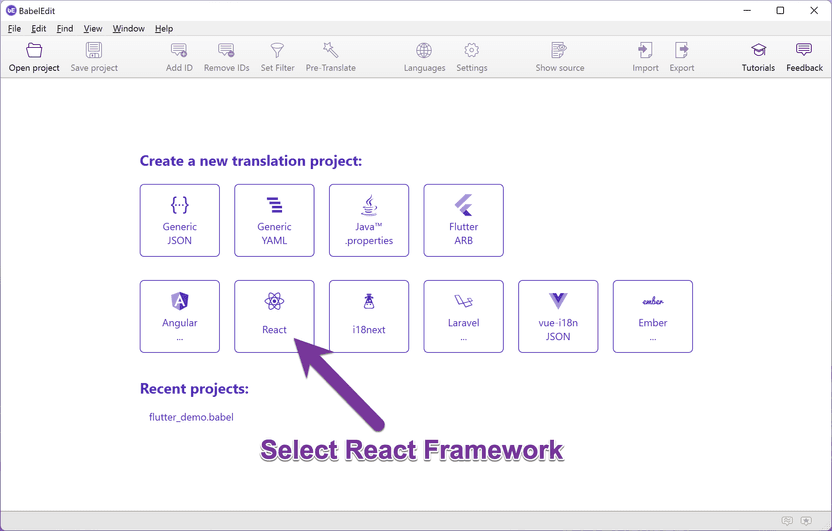
Click on React in BabelEdit's main screen.
Click the **formatjs extract** button in the next screen. It would also be possible to use react-intl without the extractor - but using it is much more convenient!
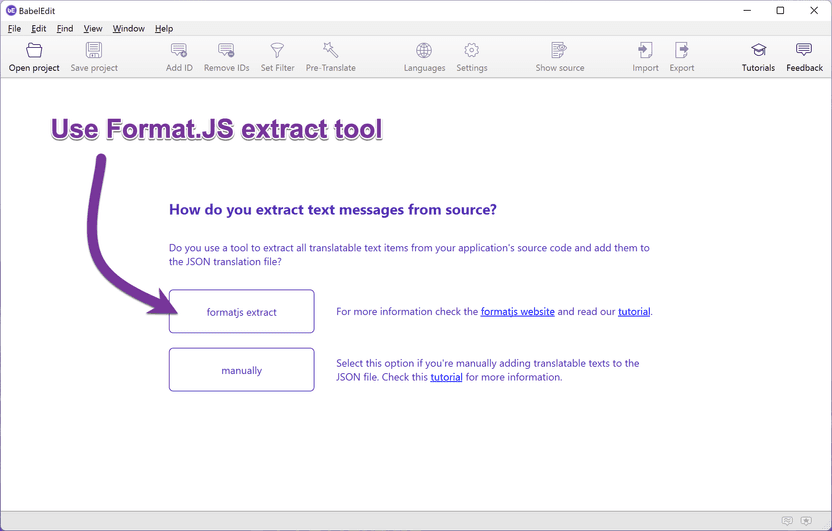
Click on formatjs extract when using the source code extraction
Drag and drop the **extracted/en.json** onto BabelEdit:
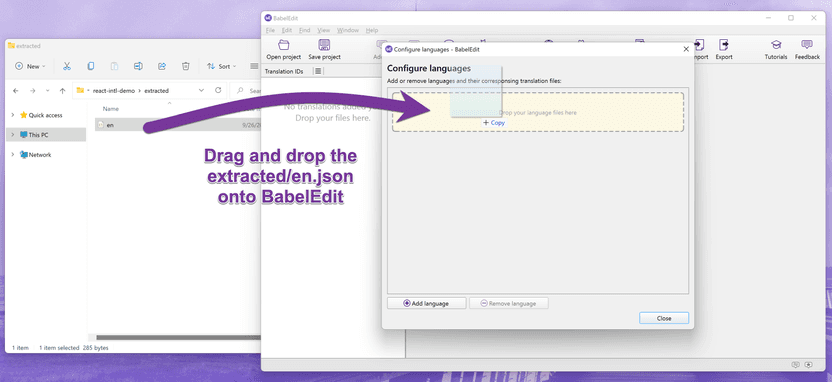
Drop the extracted en.json file onto BabelEdit
Drag and drop the other language files (**src/translations/de.json** and **src/translations/fr.json**) onto BabelEdit:
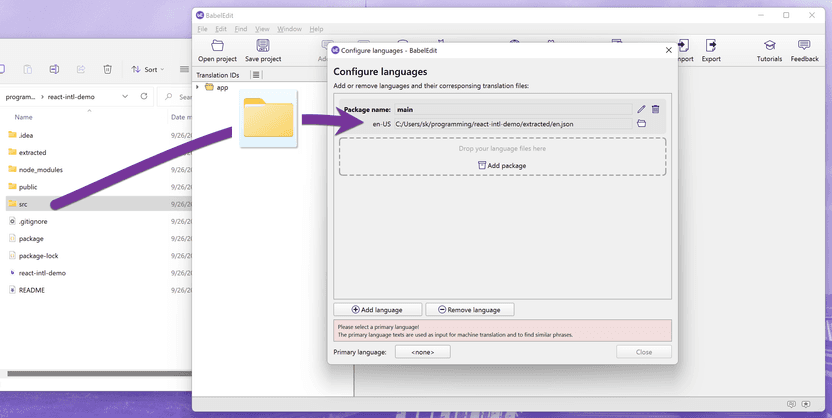
Drop the created translation files onto BabelEdit
Select **English (en-US)** as the primary language:
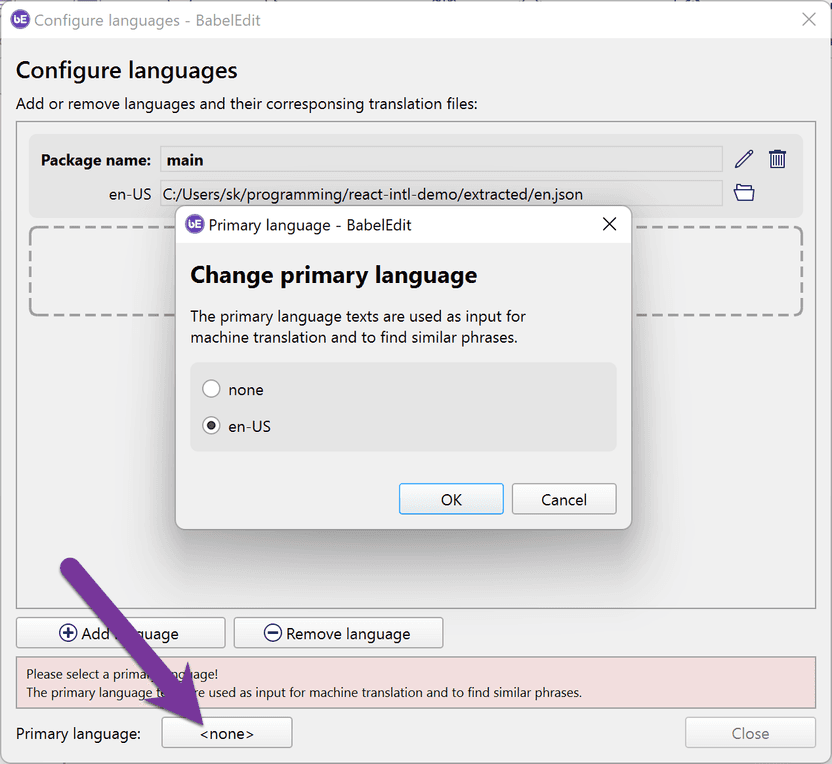
Set en-US as the primary language
This is important because the primary language is the language used for the extraction. BabelEdit makes this language read-only. This is because changes to the primary language would be overwritten with the next `npm run extract` anyway. BabelEdit also reads the comments from that file.
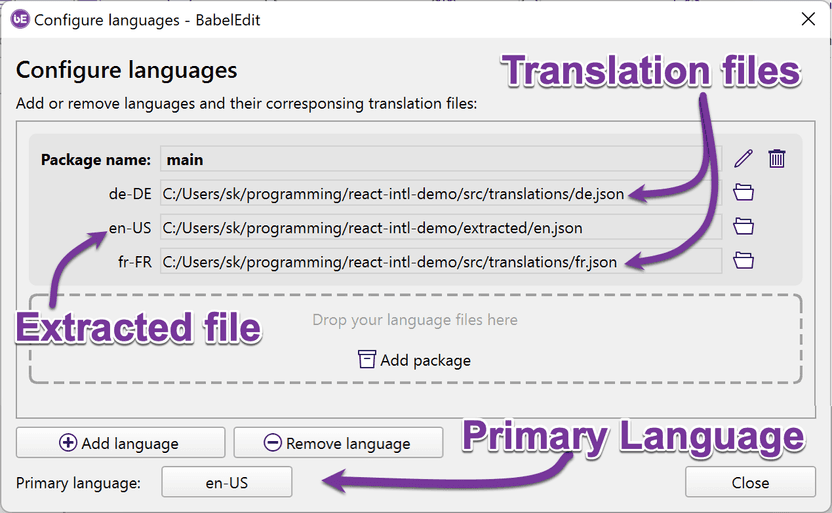
Final setup for BabelEdit for react-intl and Format.JS
Finally, click **Close**.
## Why BabelEdit?
BabelEdit is designed for the daily needs of developers. It's not a traditional translation software but an editor that speeds up managing your translations.
* First of all, it **keeps your JSON files in sync**. No more old translation IDs that are no more used - or missing new translations in some files.
* Preview your application in different languages using **Machine Translation**
* See where a translation is used with **Source code references**
* Export translation files to external translation agencies, and import them back into your project
* Comes with a **fair pricing model**: No subscription. BabelEdit comes with a perpetual license.
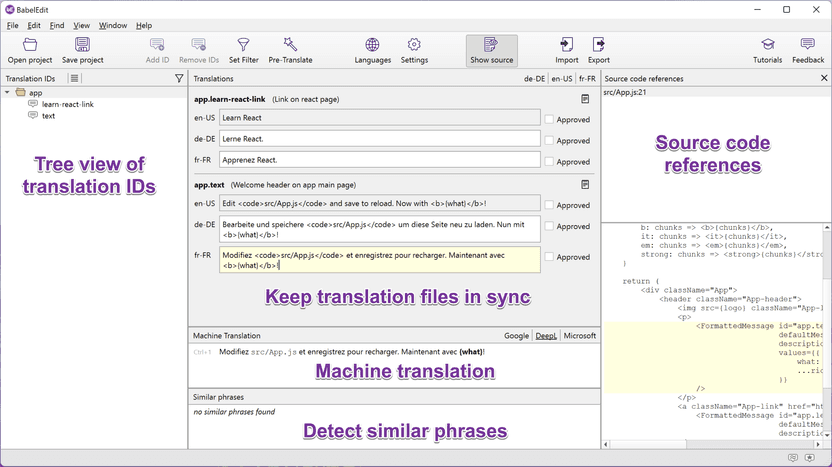
BabelEdit has many useful features: Keep your JSON files in sync, machine transation, source code references,...
## Structured data
```json
{
"@context": "https://schema.org",
"@type": "TechArticle",
"headline": "How to translate your React app with react-intl / FormatJS",
"author": [
{
"@type": "Person",
"name": "Andreas Löw"
},
{
"@type": "Person",
"name": "Joachim Grill"
}
],
"dateModified": "2022-09-26T00:00:00.000Z",
"image": "/static/caca3c1b76487f57e2a193d4353f351d/a6312/how-to-translate-your-react-app-with-react-intl.png"
}
```