---
title: "CSS animation examples with TexturePacker"
description: "These two examples show you how to easily create animations with CSS and sprite sheets. Example 1: @keyframes animation. Example 2: Javascript animation"
canonical: "https://www.codeandweb.com/texturepacker/tutorials/animate-sprites-in-css-with-texturepacker"
date: "2023-10-12T00:00:00.000Z"
modified: "2023-10-12T00:00:00.000Z"
source: "html"
---
# CSS animation examples with TexturePacker
Joachim Grill
[texturepacker](https://www.codeandweb.com/texturepacker/tutorials.md), [css](https://www.codeandweb.com/tutorials/css.md), [tutorial](https://www.codeandweb.com/tags/tutorial), [css-sprites](https://www.codeandweb.com/tags/css-sprites)

## What you are going to learn
* Playing animations using CSS, without JavaScript
* Playing animations using JavaScript
> **Note:** You want to learn how to create CSS sprites with TexturePacker? How to display a sprite, and how to display another sprite when it's hovered over with the mouse?
>
> All of this is explained in our [Creating CSS sprites with TexturePacker](https://www.codeandweb.com/texturepacker/tutorials/creating-css-sprites-with-texturepacker.md) tutorial!
## Play animation with CSS
Simple animations in CSS have some benefits over animations in JavaScript:
* They're easy to use: you don't even have to know JavaScript.
* The animation runs smoothly, even under moderate system load.
To display a sequence of animation frames with CSS, you need a sprite sheet that includes all animation frames. It's important that all sprite frames have the same size:
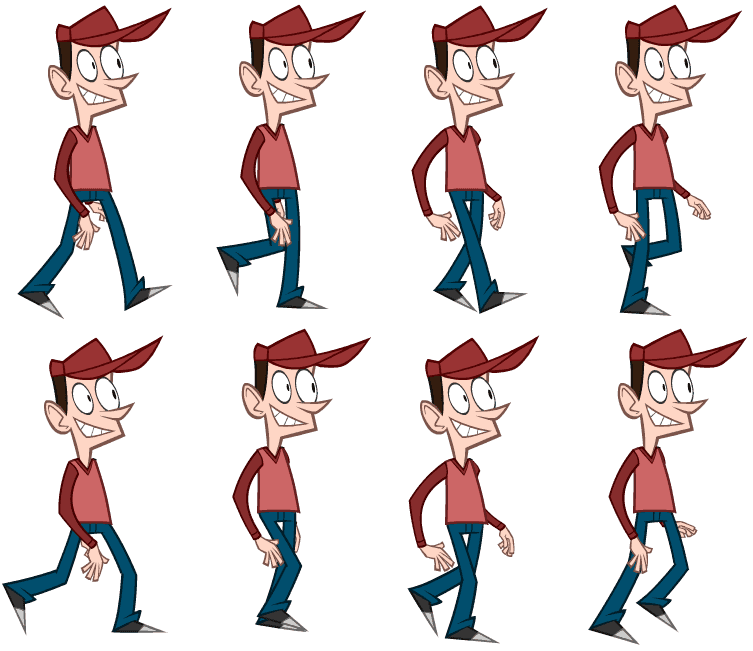
The easiest way to create a sprite sheet and its corresponding CSS file is by using TexturePacker — available for Windows, macOS and Linux. Ensure that you have TexturePacker version 7.1 or newer, as older versions do not support the export of CSS animation rules.
[Download TexturePacker 8.3.0](https://www.codeandweb.com/texturepacker/download/8.3.0/win)
for Windows
[Also available for macOS and Linux](https://www.codeandweb.com/texturepacker/download.md)
Start TexturePacker and create a sprite sheet with the following three steps:
1. Drag and drop your sprites on the left sidebar.
2. Select the **CSS (responsive, retina)** framework and specify the CSS file name. You can leave the texture file name empty, then it will be stored next to the CSS file.
3. Press **Publish** to export the sprite sheet.
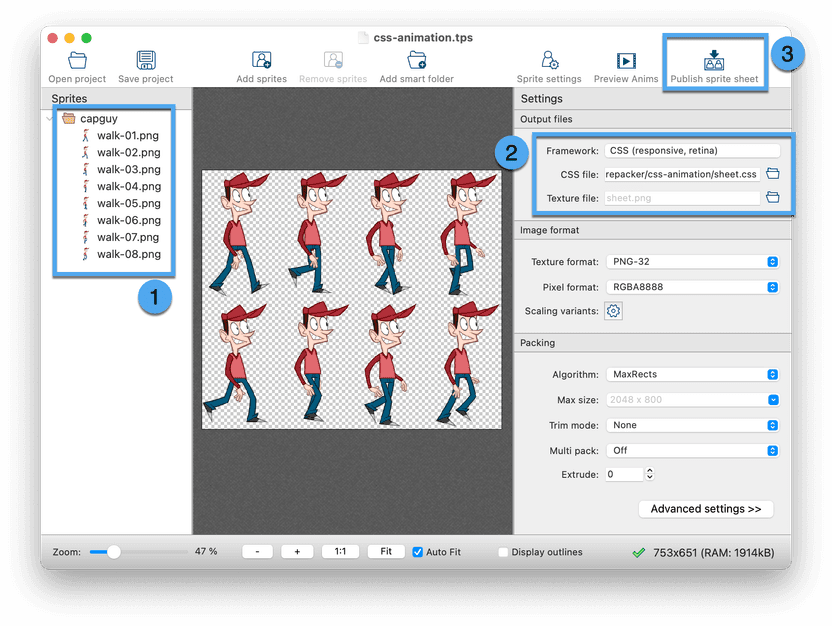
The option **Auto-detect animations** on the **Advanced settings** page is enabled by default. TexturePacker automatically identifies sprite names that only differ by a sequence number and exports additional CSS animation rules for them.
In our example, TexturePacker generates the CSS selector `walk-animation`, which can easily be used to play the animation:
```html
```
To adjust the animation speed, you can override the `animation-duration` property in your own CSS file:
```css
.walk-animation::after {
animation-duration: 3s;
}
```
## Animate sprites with JavaScript
There are several options how to animate a sprite with JavaScript. Here's a way to do it with pure Javascript. But you can of course also use one of the many JavaScript frameworks...
js-animation.js
```javascript
function animate()
{
const animatedElements = document.querySelectorAll(".animation");
animatedElements.forEach(el => {
const frameDuration = el.dataset.frameDuration || 100;
const frameNames = el.dataset.frames.split(",");
el.classList.add(frameNames[0]);
setInterval(() => {
let frame = el.dataset.currentFrame || 0;
el.classList.remove(frameNames[frame]);
frame = (++frame) % frameNames.length;
el.classList.add(frameNames[frame]);
el.dataset.currentFrame = frame;
}, frameDuration);
});
}
```
Include the CSS file published with TexturePacker and the JavaScript file in your HTML. Then add elements with CSS class `animation` and start the animations by calling `animate()`:
```html
```
Add the following attributes to the items you want to animate:
* `class="animation"` — required for the script to detect animations
* `data-frame-duration="33"` — the delay between frames in ms
* `data-frames="frame1,frame2,..."` — a comma separated list of animation frames
Loading animation demo
As the Javascript implementation doesn't rely on the CSS rules generated by TexturePacker for animations, you can disable the option **Auto-detect animations** on the **Advanced settings** page of TexturePacker. This will help reduce the size of the generated CSS file.
## Structured data
```json
{
"@context": "https://schema.org",
"@type": "TechArticle",
"headline": "CSS animation examples with TexturePacker",
"author": [
{
"@type": "Person",
"name": "Joachim Grill"
}
],
"dateModified": "2023-10-12T00:00:00.000Z",
"image": "/static/66d539e6a222a40fe830e6bdf7ba2d10/a6312/post-image.png"
}
```